Silhouette
Start near the source view. Compare the sweep of the two tall horns, the length of the snout and the lower neck outline. Rotate a little: a surface pattern can suggest detail without giving the same depth to the outer contour.
IMAGE3D · WORKED EXAMPLE #2 · EDITORIAL REVIEW: SEPTEMBER 28, 2026
The dragon reference gives you clear landmarks to compare: tall horns, an open jaw, a prominent eye and layered scales. Use the interactive GLB to check how those features read as you move away from the photographed view, before deciding what to inspect in Blender.
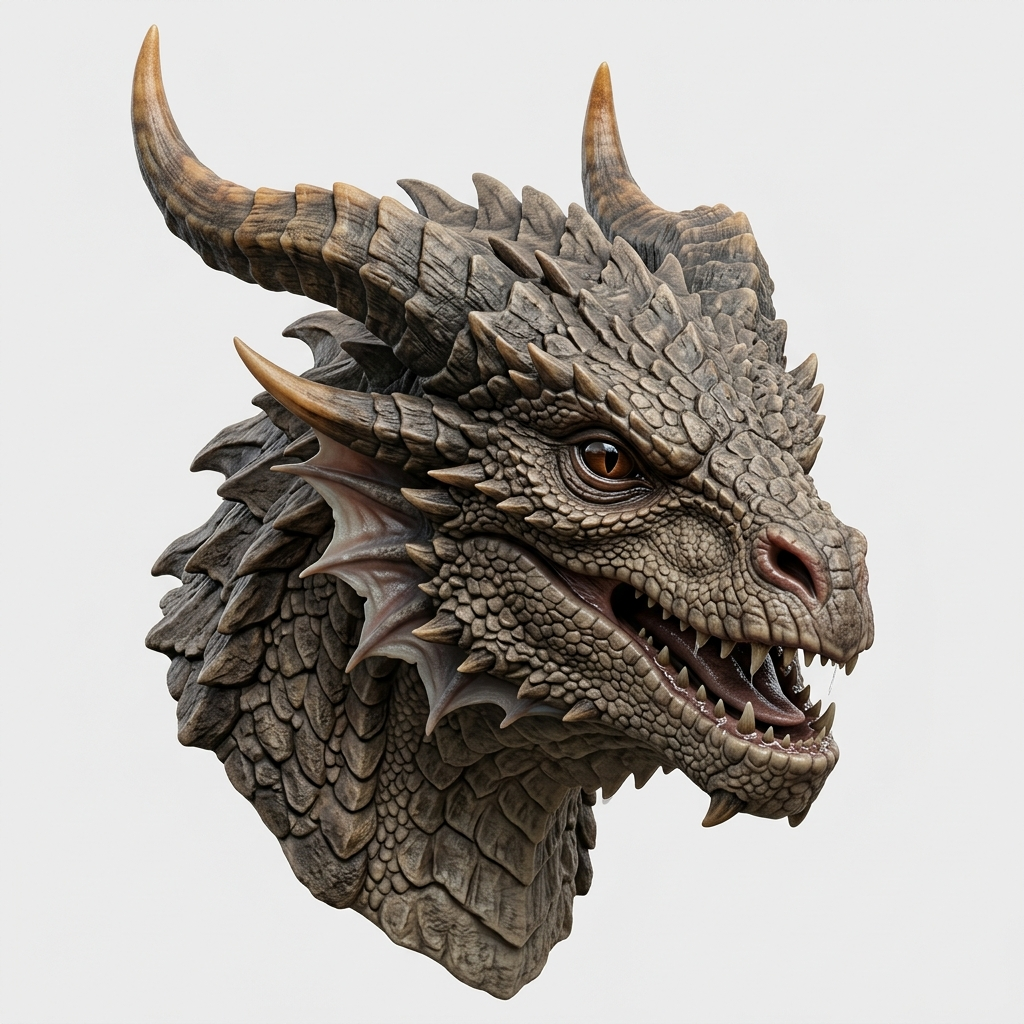
showcase-dragon-pro.glb. Drag to rotate; pinch or scroll to zoom. With the viewer focused, use the arrow keys to orbit. The filename does not establish the exact generation settings.This page verifies the source image and interactive GLB available in the repository. A complete Blender import was not performed during this editorial review.
This is an Image3D demonstration asset, not a customer result. Browser appearance is the evidence shown here.
Start near the source view. Compare the sweep of the two tall horns, the length of the snout and the lower neck outline. Rotate a little: a surface pattern can suggest detail without giving the same depth to the outer contour.
Locate the eye, nostril, mouth opening and teeth against the reference. Inspect the cheek spikes and overlapping scales as separate landmarks rather than treating a similar overall color as a match.
Turn to each profile and look at horn thickness, the jaw gap and the transition from cheek to neck. Check for flattened forms, intersections or a feature that disappears off-axis. These are inspection questions, not a claim that the mesh is defect-free.
Orbit behind the head and follow the neck and horn bases. Look for abrupt flattening, gaps or unexpected changes in volume. The source does not show the rear, so a continuous-looking back still cannot be verified as the original subject’s true shape.
Compare the pale horn tips, darker mouth and mottled scales in the browser. Keep lighting in mind: highlights and shadow can change the perceived depth. This view does not verify Blender shader mapping, color management or whether each visible scale is modeled geometry.
This example is a GLB inspection, not a Blender acceptance test. Keep the GLB as the handoff file when checking the mesh and its material appearance together. A geometry-only conversion such as STL will not preserve this material appearance.
One source/result pair does not establish a success rate, exact generation settings, measured dimensions, production readiness or a customer outcome. It also does not demonstrate a physical print, watertight geometry, Blender import success or Blender material fidelity. No such result is claimed here.
Start with a clear reference, generate a draft and rotate it before choosing your next workflow.
Open Image3D Studio