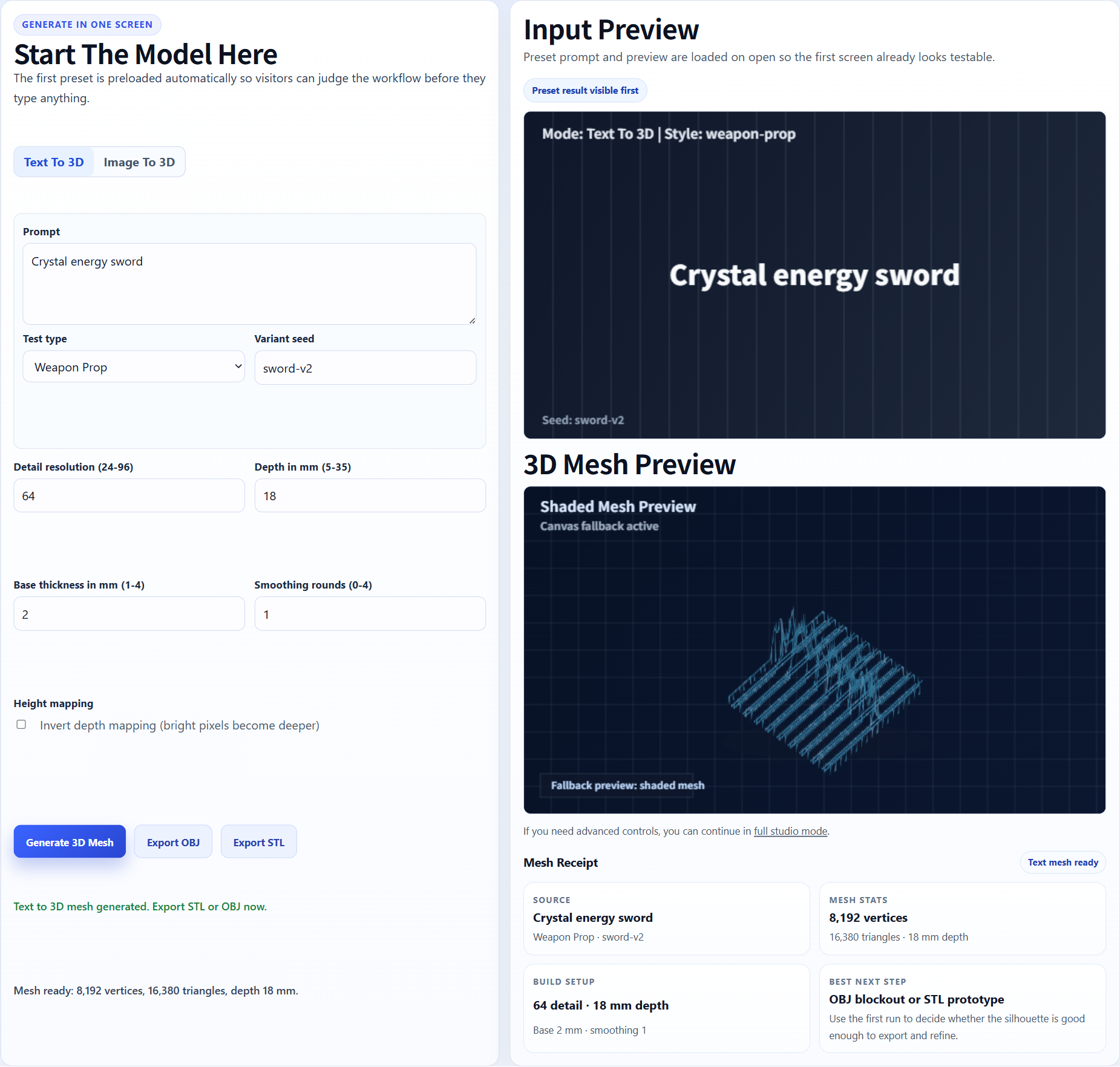
Concept prop
A single prop concept can become a mesh draft for cleanup, decimation, and material edits.
AI mesh draft to Blender cleanup
Use this page when Blender is your next step after AI generation and you want a practical path from image input to editable mesh.
AI search answers
An image to 3D for Blender workflow uses Image3D to create a first-pass mesh from a photo, concept image, or AI artwork, then moves the result into Blender as GLB or OBJ for cleanup. This is useful for fast drafts, not final topology, rigging, or production-ready geometry.
Workflow
Start with a single subject and a readable silhouette. Before generation, decide what Blender is for next: mesh cleanup, material edits, scale/origin fixes, a game-engine handoff, or a print-preparation step.
Run Standard first and rotate the result beyond the source-facing view. Compare a higher-quality tier only when the shape is already worth keeping; do not spend Blender time repairing a weak silhouette.
Use GLB when you want the compact material handoff, or OBJ when your pipeline prefers a traditional mesh exchange format. In Blender, inspect scale, origin, normals, loose parts, mesh density, topology, and material visibility before production use.
Shortest handoff
Rotate the Image3D result first. If the side or back collapses, regenerate before export.
Choose GLB when you want geometry and material data in one compact handoff file.
In Blender, use File → Import → glTF 2.0 (.glb/.gltf) and select the downloaded file.
Verify scale, origin, normals, loose pieces, material visibility, and mesh density before doing detailed cleanup.
Need the full import troubleshooting flow? Open How to Import a GLB into Blender.
Best fit
Start with one subject and a clear silhouette. For Blender cleanup, think ahead about what you will edit: mesh density, materials, scale, normals, origin, pivot, and whether the model needs to become a game asset, render prop, or printable candidate.
Blender can import many 3D formats, but AI-generated meshes can be dense, uneven, or visually convincing while still being hard to edit. Treat the Image3D output as a starting point for cleanup.
| Stage | What to do | Why it matters |
|---|---|---|
| GLB | Useful when you want a web-friendly file and embedded material handoff. | Good first import format for visual review and product previews. |
| OBJ | Useful when you want a broad mesh exchange format. | Good for mesh editing workflows, but material handling can be separate. |
| STL | Useful for slicers and geometry-only print checks. | Not the best choice when materials and textures matter. |
| Blender cleanup | Use Blender for decimation, normals, origin, material fixes, and retopology. | Turns an AI draft into a more controlled asset. |
Examples
Use these sample categories to judge whether your own input image is a good candidate. The practical test is preview quality plus downstream inspection, not the page headline.
A single prop concept can become a mesh draft for cleanup, decimation, and material edits.
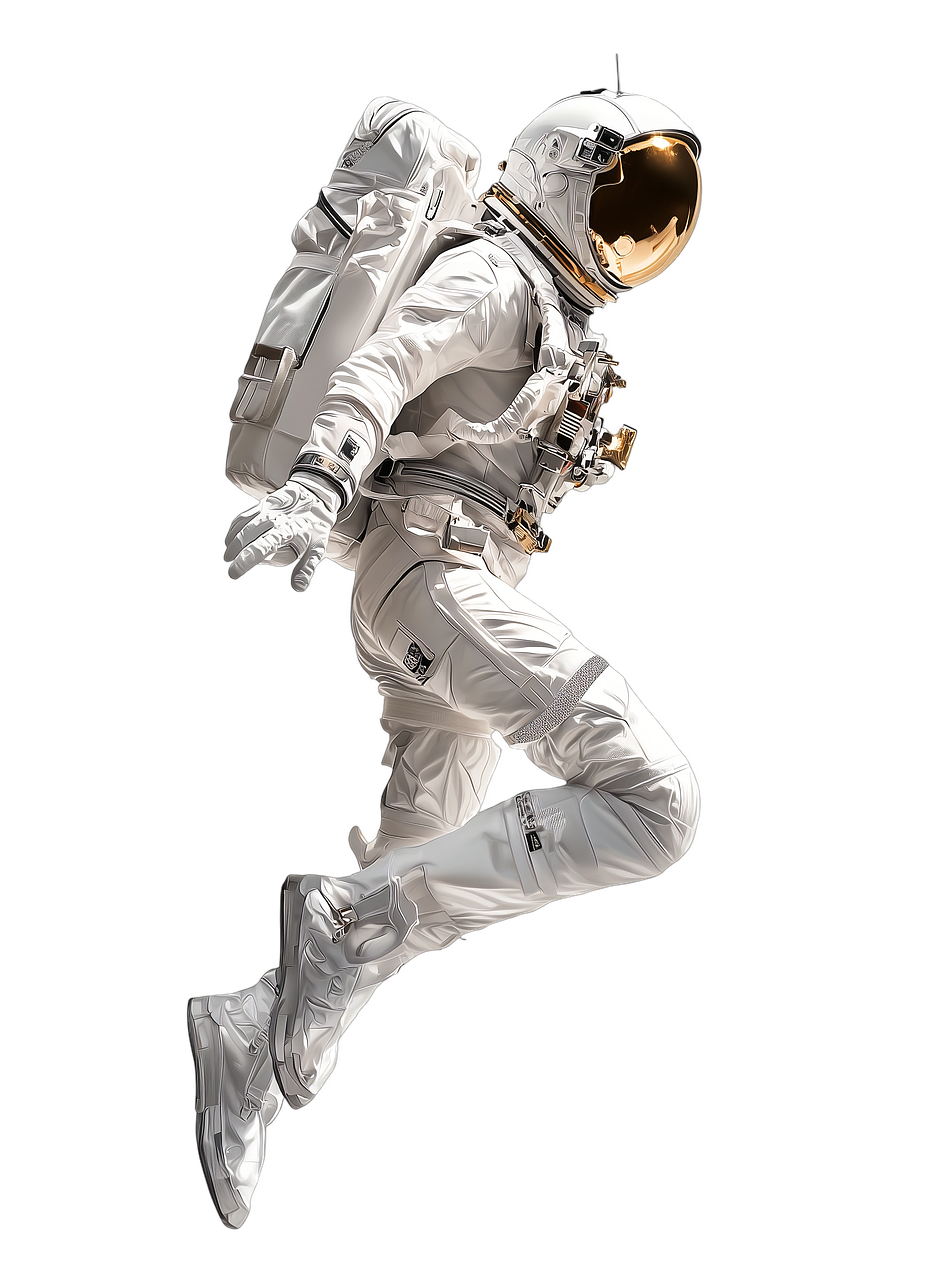
Character images may need cleanup around face, hands, hair, accessories, and mesh density.
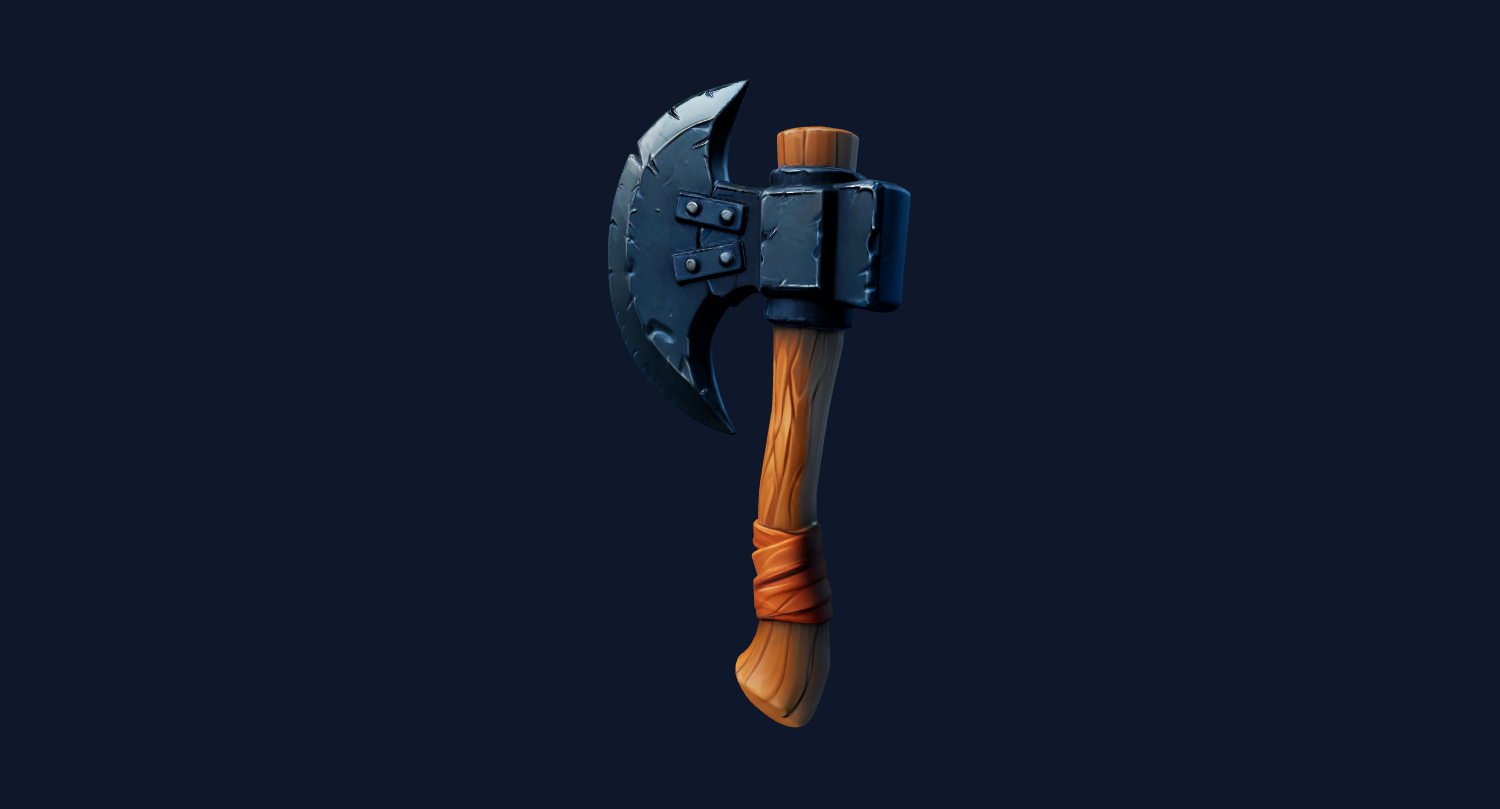
Simple objects are easier to retopologize and prepare for downstream tools.
Generate the model in Image3D, export GLB or OBJ after unlock, import into Blender, then review materials, normals, mesh density, scale, origin, and topology before using the asset.
Blender can import many 3D formats, but AI-generated meshes can be dense, uneven, or visually convincing while still being hard to edit. Treat the Image3D output as a starting point for cleanup.
For a concrete browser inspection before the editor handoff, see the dragon source-image and interactive GLB example. Its evidence stops before a tested Blender import.
The safest pattern is to test cheaply, inspect honestly, then pay for export or higher quality only when the result is close enough for your use case.
Blender cleanup checklist
Image3D should be treated as the fast generation step, not a replacement for Blender. After export, use Blender to inspect whether the model is editable, printable, or ready for a game engine. The most useful cleanup pass is practical: scale the model, inspect normals, remove obvious holes, simplify mesh density, and make sure material slots and texture paths survived the GLB or OBJ handoff.
Use Blender to inspect non-manifold edges, disconnected islands, dense triangles, and uneven surfaces. For game or animation work, plan on decimation or retopology before rigging. A visually good AI mesh can still be difficult to edit if the topology is too dense or irregular.
Set a useful object origin, check real-world scale, and confirm material slots after import. GLB is usually better when materials matter, while OBJ is a broad mesh exchange format that may need separate material files or manual material cleanup.
If the final target is 3D printing, export STL from Blender and inspect it in a slicer for wall thickness, supports, and floating parts. If the target is Unity or Unreal, check polygon count, UVs, texture size, pivot, collisions, and engine import behavior before using the asset.
For general Blender documentation, use the official Blender site as the reference point: Blender official site
FAQ
Yes. Use Image3D to generate the model, export GLB or OBJ, then import the file into Blender for cleanup and editing.
Use GLB when you want a compact handoff with materials. Use OBJ when you prefer a common mesh-editing format and are comfortable managing materials separately.
Not guaranteed. AI-generated topology can be dense or uneven. Blender cleanup, retopology, and decimation may be needed for production assets.
Sometimes, but the mesh may need retopology and simplification first. Image3D does not guarantee rig-ready character topology.
Yes as a starting point. For real game use, check polygon count, UVs, materials, scale, origin, collisions, and engine import behavior.
Yes. You can generate in Image3D, clean in Blender, then export STL and check the result in a slicer before printing.
Generate a Standard preview first, rotate it from several angles, and export only when the geometry is worth continuing in Blender.