Generate draft
Create a candidate mesh from a clear single-object image in Image3D.
Candidate meshes for Roblox-style workflows
Use this page when you want to explore simple props, collectibles, decorations, obby pieces, or prototype objects from images before preparing them for Roblox Studio.
Direct answer
A Roblox 3D model generator workflow can help create candidate meshes from images, but the result still needs checking against Roblox Studio import rules, mesh limits, moderation, rights, scale, and performance. Image3D creates a draft model; Roblox compatibility is a separate validation step.
Workflow
Create a candidate mesh from a clear single-object image in Image3D.
Rotate the result and reject models with missing backs, melted shapes, or unclear silhouettes.
Download an export after unlock, then simplify or clean the mesh in a DCC tool if needed.
Import according to Roblox documentation and check scale, limits, moderation, and performance.
Best fit
Best candidates are simple props, toys, decorative objects, collectibles, environment pieces, and prototype meshes. Do not expect guaranteed avatar-ready, rigged, marketplace-compliant, or optimized Roblox assets from one image.
Use one clean object with a readable silhouette. Avoid copyrighted characters you do not have rights to, excessive tiny details, transparent materials, full human photos, or scenes with multiple objects.
This page does not imply partnership with Roblox. You are responsible for rights, moderation compliance, import setup, mesh optimization, and gameplay performance.
Examples
These examples show the kind of source images that make sense for Roblox-style meshes. The goal is to preview a candidate, not to promise a finished production asset.
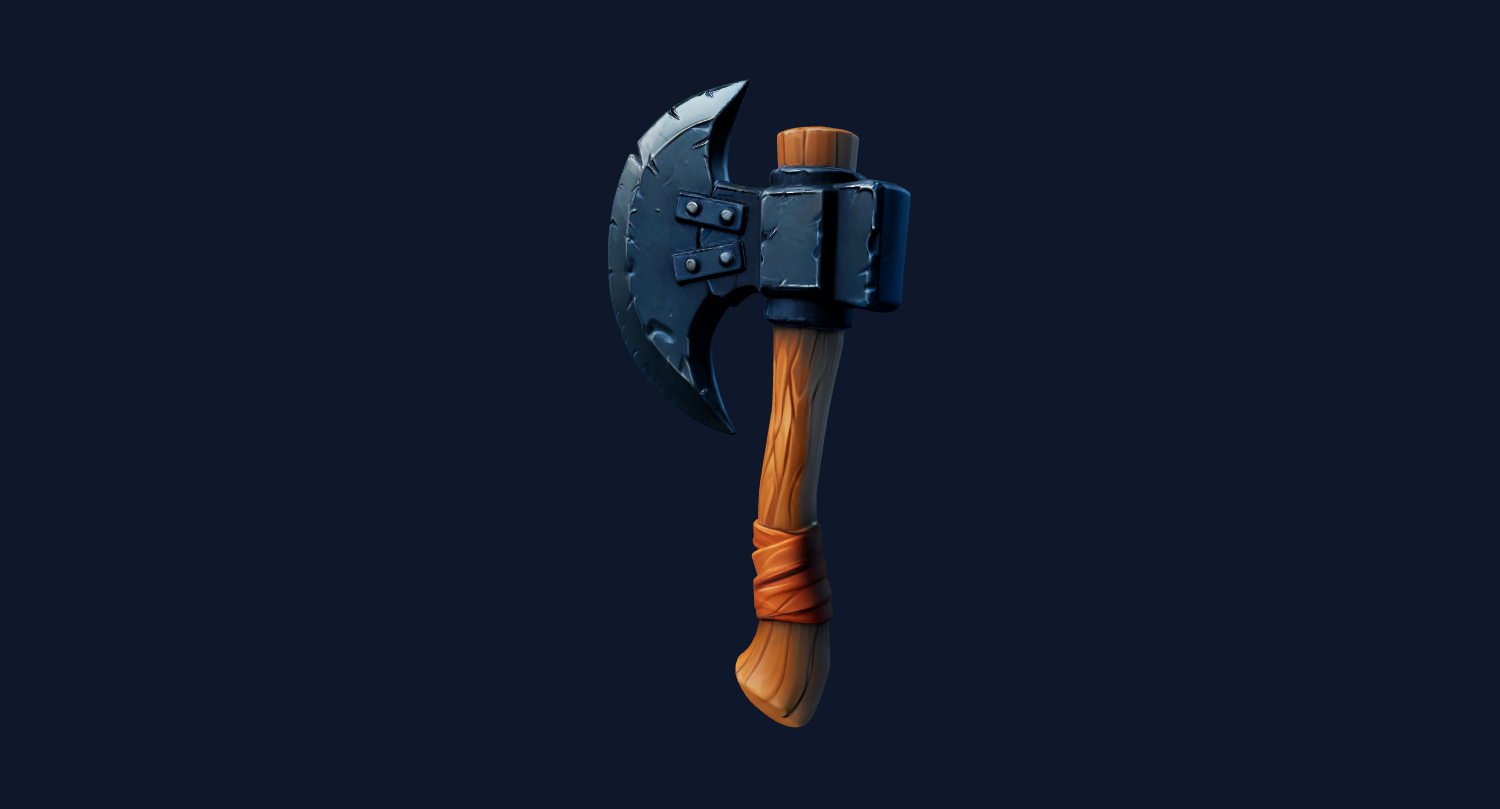
Simple collectible objects are better candidates than full rigged avatars.
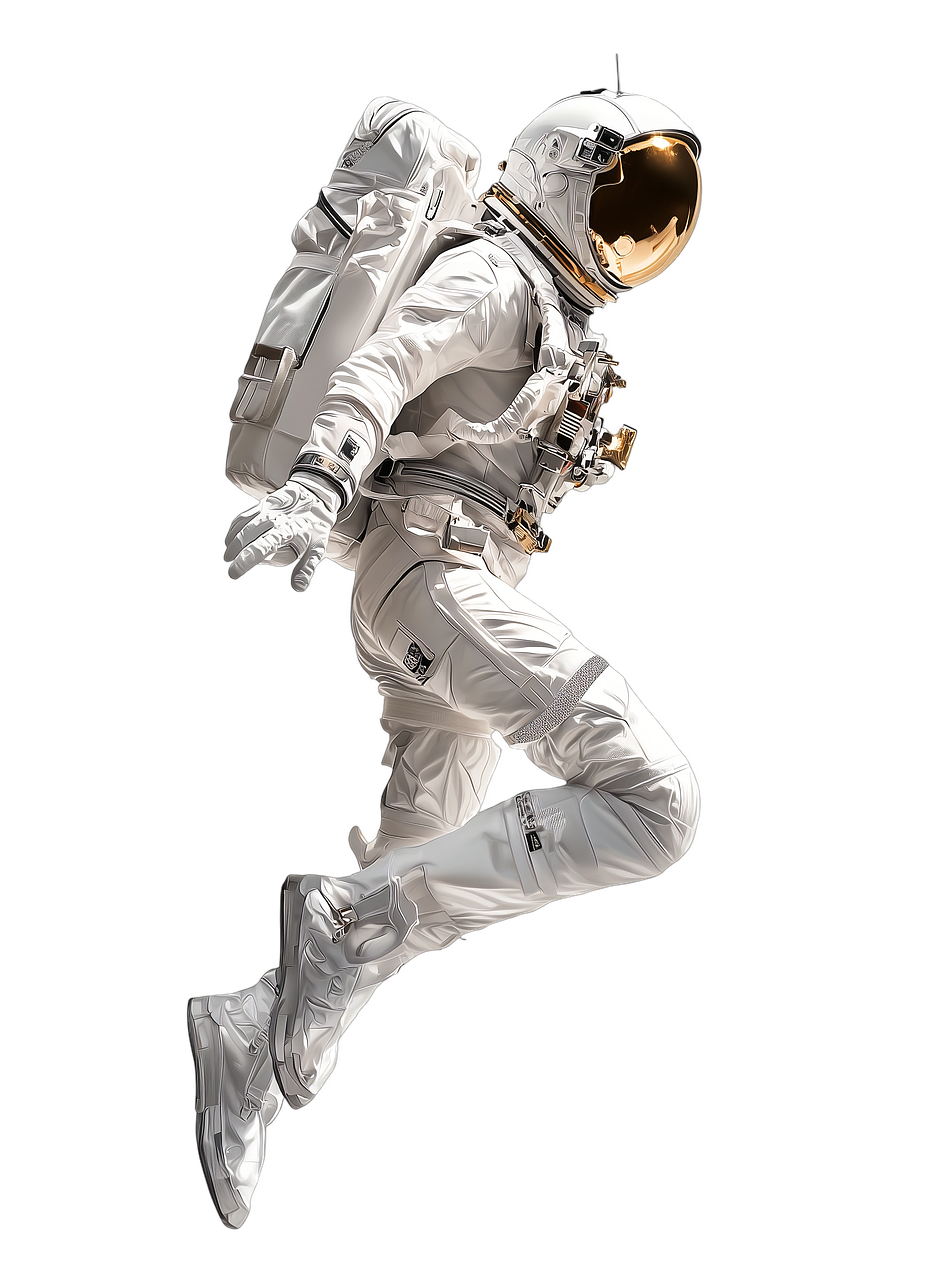
Toy-style shapes can be tested as candidate meshes before simplification.
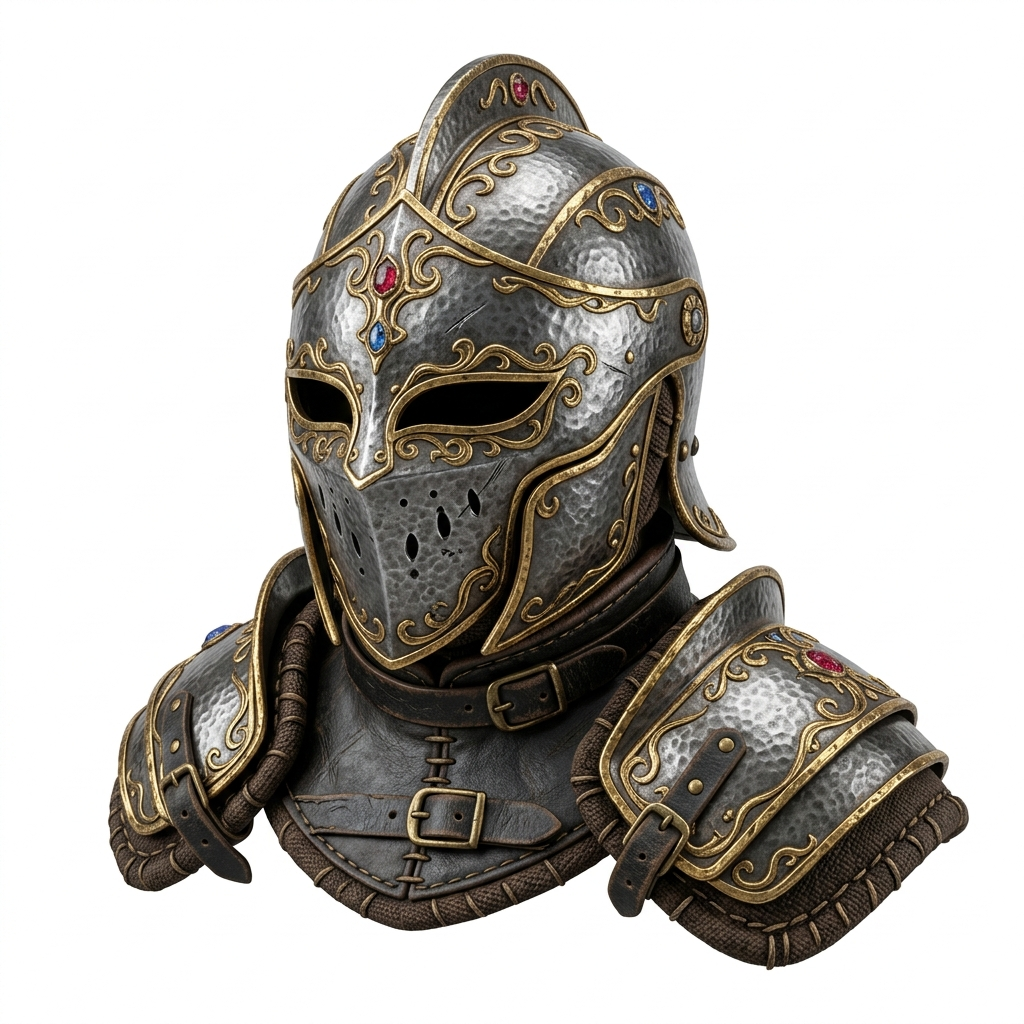
Decorations and environment accents are safer first tests than complex characters.
Generate a draft in Image3D, export the model after unlock, simplify or clean it when needed, then import and validate it according to Roblox Creator Hub guidance and your own experience in Studio.
Image3D does not replace engine documentation. Use these references to verify the import and cleanup expectations for your own workflow.
The page language is intentionally cautious because import support, plugins, and platform limits can change by project version.
FAQ
Image3D can create candidate 3D meshes from images. You still need to import, simplify, validate, and comply with Roblox Studio requirements yourself.
No. This is a workflow page for creating draft meshes. It does not imply partnership, certification, or official integration.
Do not expect avatar-ready results from one image. Rigged avatars need specialized topology, rigging, compliance, and testing.
Simple props, collectibles, decorations, toys, signs, and environment objects are better first tests than complex characters.
Check rights, mesh complexity, scale, file preparation, material simplicity, and current Roblox Creator Hub import guidance.
Only if you have the right to use them. Image3D does not grant rights to protected characters, brands, or artwork.
Generate Standard first. Export or upgrade only when the preview shows a shape worth keeping.