Generate in Image3D
Start with Standard, then use Pro or Ultra only when the shape is close.
Image3D to Unity asset handoff
Use this workflow when Unity is your target environment and you want a fast way to turn a reference image into a 3D model candidate before import testing.
Direct answer
Image to 3D for Unity means using Image3D to create a draft mesh from a reference image, then validating that asset inside Unity or through a Blender cleanup step. It is a generation workflow, not an official Unity integration or a guarantee of game-ready output.
Workflow
Start with Standard, then use Pro or Ultra only when the shape is close.
Use GLB for a material-aware handoff or OBJ when cleanup is expected.
Fix scale, origin, materials, normals, and mesh density before Unity.
Import into a test scene and check colliders, runtime performance, and lighting.
Best fit
Good candidates include static props, AR product previews, classroom models, prototype objects, collectibles, and environment accents. Rigged characters, exact gameplay colliders, and mobile-optimized production assets still need dedicated cleanup.
Use one object per image, simple background, and a visible silhouette. If you need an asset for mobile or WebGL, choose simpler shapes because dense AI meshes can become expensive at runtime.
Unity projects vary by version, packages, and platform target. Always verify your exact import path and do a small test scene before relying on a generated asset.
Examples
These examples show the kind of source images that make sense for Unity handoff. The goal is to preview a candidate, not to promise a finished production asset.
Simple product-like shapes can be checked in Unity for scale and material response.
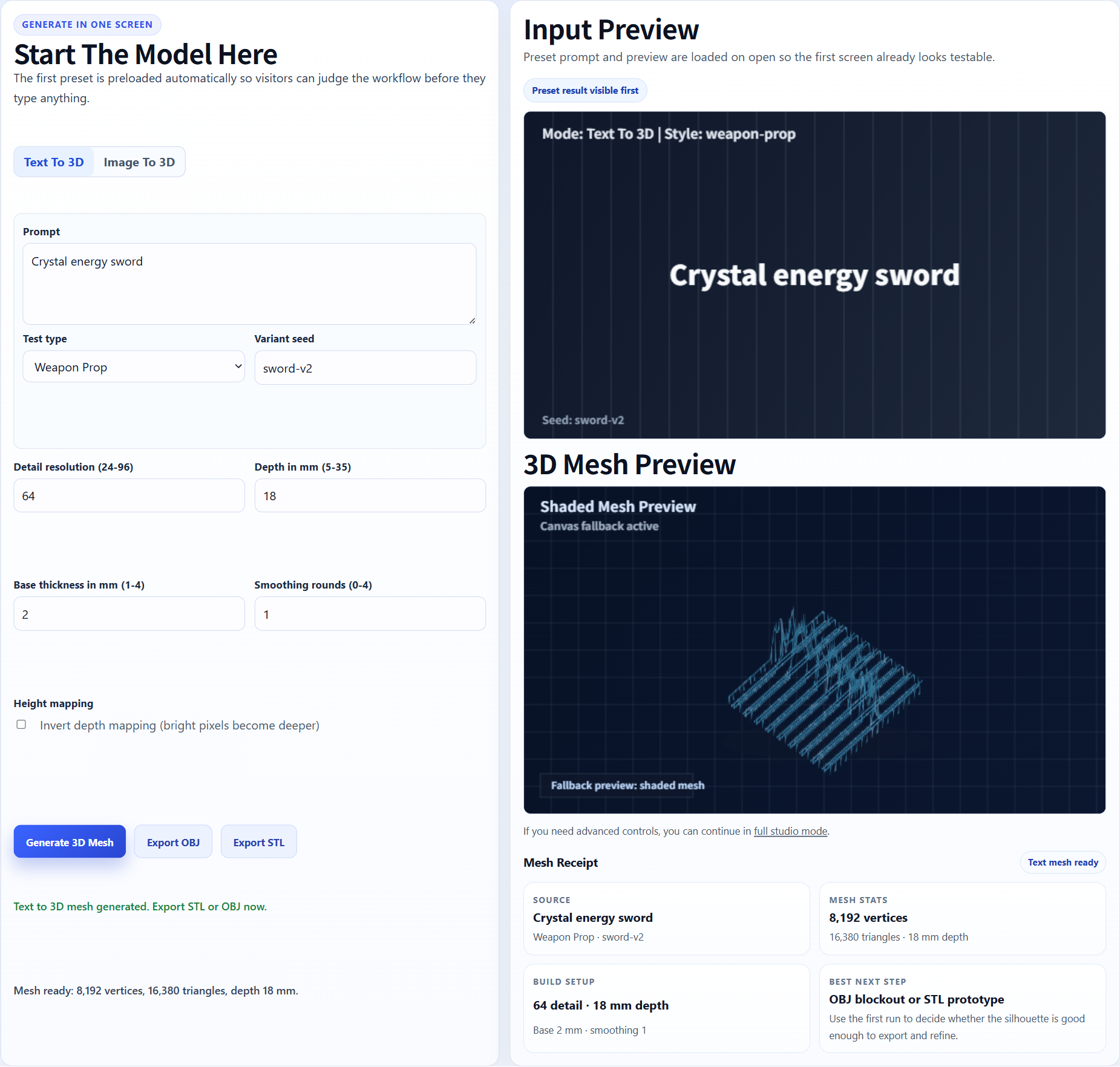
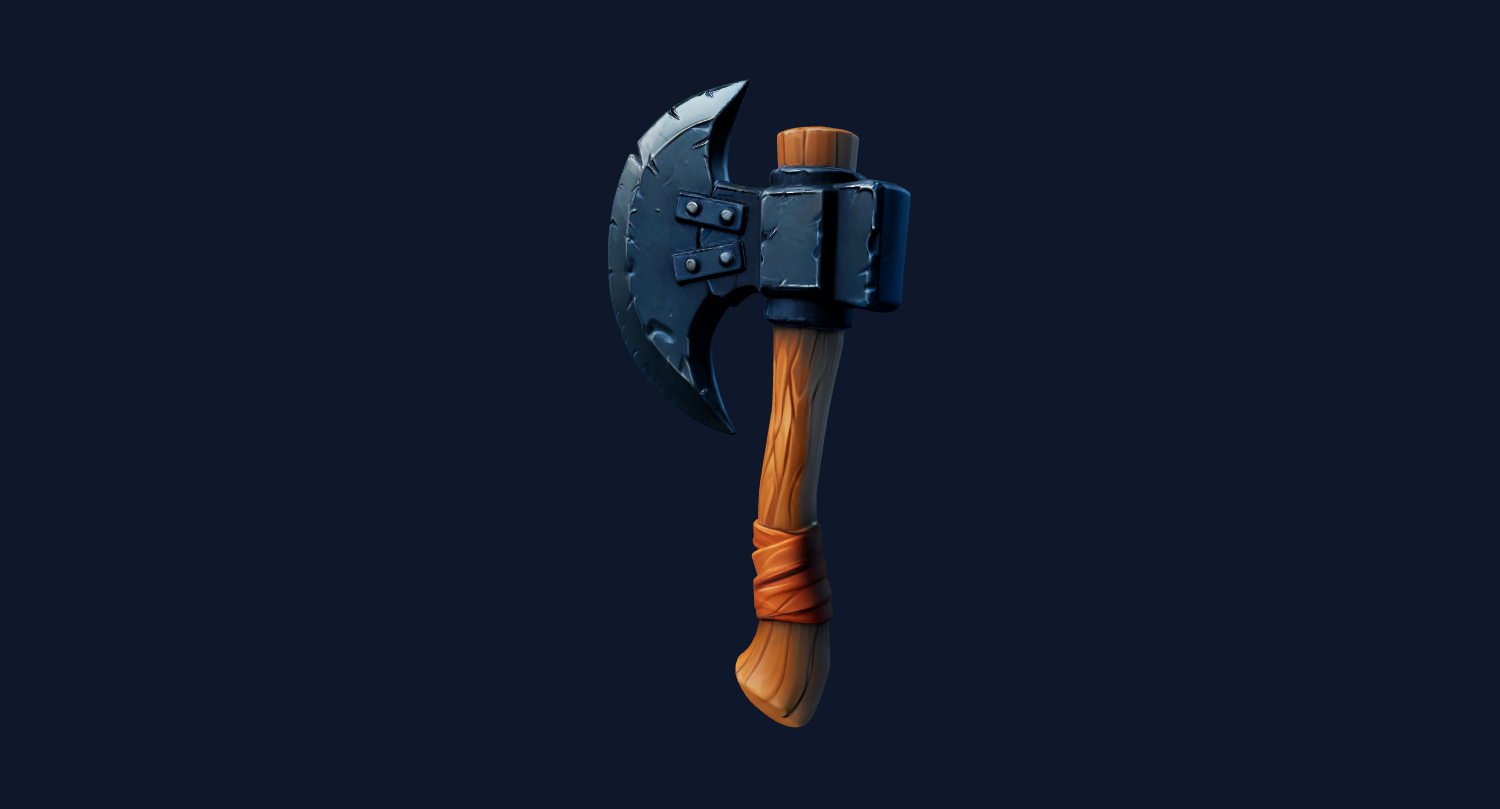
A game prop draft can move from Image3D to Blender cleanup before Unity import.
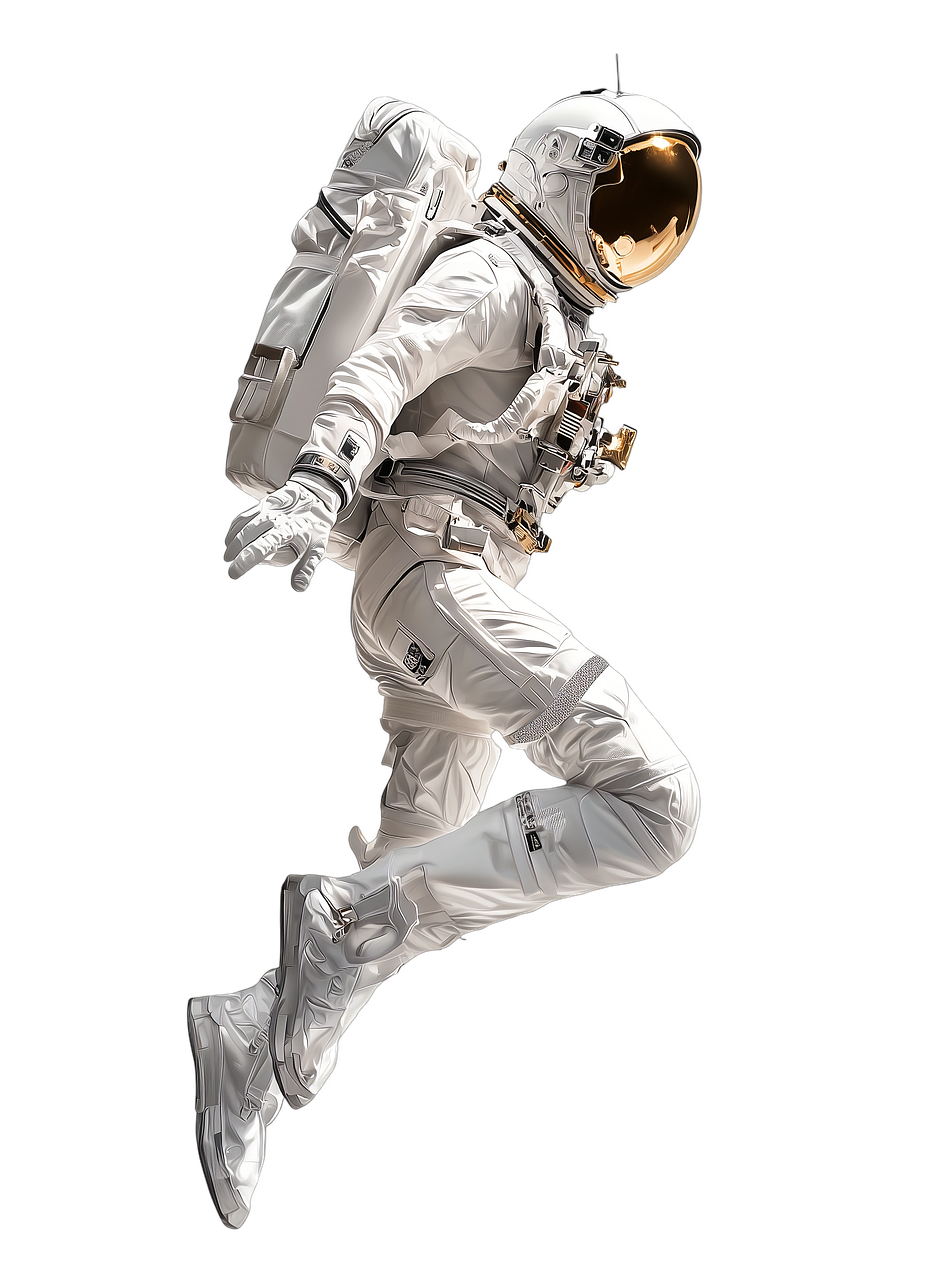
Collectible or statue-like objects are safer targets than rigged character pipelines.
Export GLB if your Unity project already has a glTF/GLB import path. Export OBJ when you plan to clean the mesh in Blender first. In Unity, inspect scale, pivot, materials, colliders, and performance.
Image3D does not replace engine documentation. Use these references to verify the import and cleanup expectations for your own workflow.
The page language is intentionally cautious because import support, plugins, and platform limits can change by project version.
FAQ
It can create first-pass assets from images. Unity use still requires import testing, cleanup, scale checks, material checks, and performance validation.
Use GLB when you have a GLB import workflow ready and want materials. Use OBJ when you plan to clean or edit the mesh before Unity import.
No. This page describes a workflow, not an official integration. Use Image3D exports with your chosen Unity import path.
Usually not. Rigging and animation need controlled topology, so characters often require cleanup or retopology first.
You can test AR-style product or object previews, but check file size, scale, material quality, and target-device performance.
Generate one simple prop, export it, import into an empty Unity scene, then inspect scale, materials, and performance before trying complex assets.
Generate Standard first. Export or upgrade only when the preview shows a shape worth keeping.