Updated July 24, 2026 · First-pass mesh to Blender workflow
Image to 3D for Blender: GLB and OBJ Workflow
Generate a first-pass mesh from an image with Image3D, choose GLB or OBJ for the next job, then use Blender to inspect scale, normals, materials, loose geometry, and topology before relying on the file.
Direct answer
Use Image3D to make a first-pass visual mesh from a clear permitted image, export GLB or OBJ, then inspect and edit it in Blender before downstream use. Treat it as an editable starting mesh—not exact CAD, a measured part, or automatically print-ready output.
Why Blender is the right second step
Image-to-3D tools are useful because they create a mesh quickly from a single image. Blender is useful because it gives you control after generation. The useful handoff is simple: generate fast, then inspect and edit before using the asset in a game, ecommerce page, render, AR viewer, or print pipeline.
A generated model can contain dense triangles, fused parts, texture issues, odd normals, or surfaces that look convincing only from one angle. Blender lets you separate objects, set scale, remove unwanted fragments, edit materials, and prepare a target-specific export. That is different from proving an exact dimension, hidden feature, tolerance, mating surface, or print result.
If the real task is a part that must fit or carry load, use the mesh only as visual reference and rebuild the critical geometry from measurements. See the Image-to-3D CAD-reference boundary before treating any one-photo result as engineering truth.
Choose GLB or OBJ for Blender
Use GLB when...
You need a compact material-aware handoff, a web preview, or a reviewable single file. Blender’s glTF importer/exporter is designed for glTF/GLB interchange, but import results still deserve inspection.
Use OBJ when...
You need a simple classic mesh interchange for editing or cleanup. OBJ can be practical, but it may use separate material and texture files, so keep the asset package together when you hand it off.
Blender’s official glTF documentation notes that glTF is a transmission format and that export converts quads and n-gons to triangles. This is why “it imported” is a useful checkpoint, not a final topology or CAD-quality claim. For the exact import question, use the separate GLB-to-Blender import guide; this page owns the earlier image-to-first-mesh decision.
If you are unsure, start with GLB for a material-aware preview, then use OBJ when the next job is classic mesh editing. For STL or printing, move to the image-to-STL workflow and a slicer check.
Best images for Blender workflows
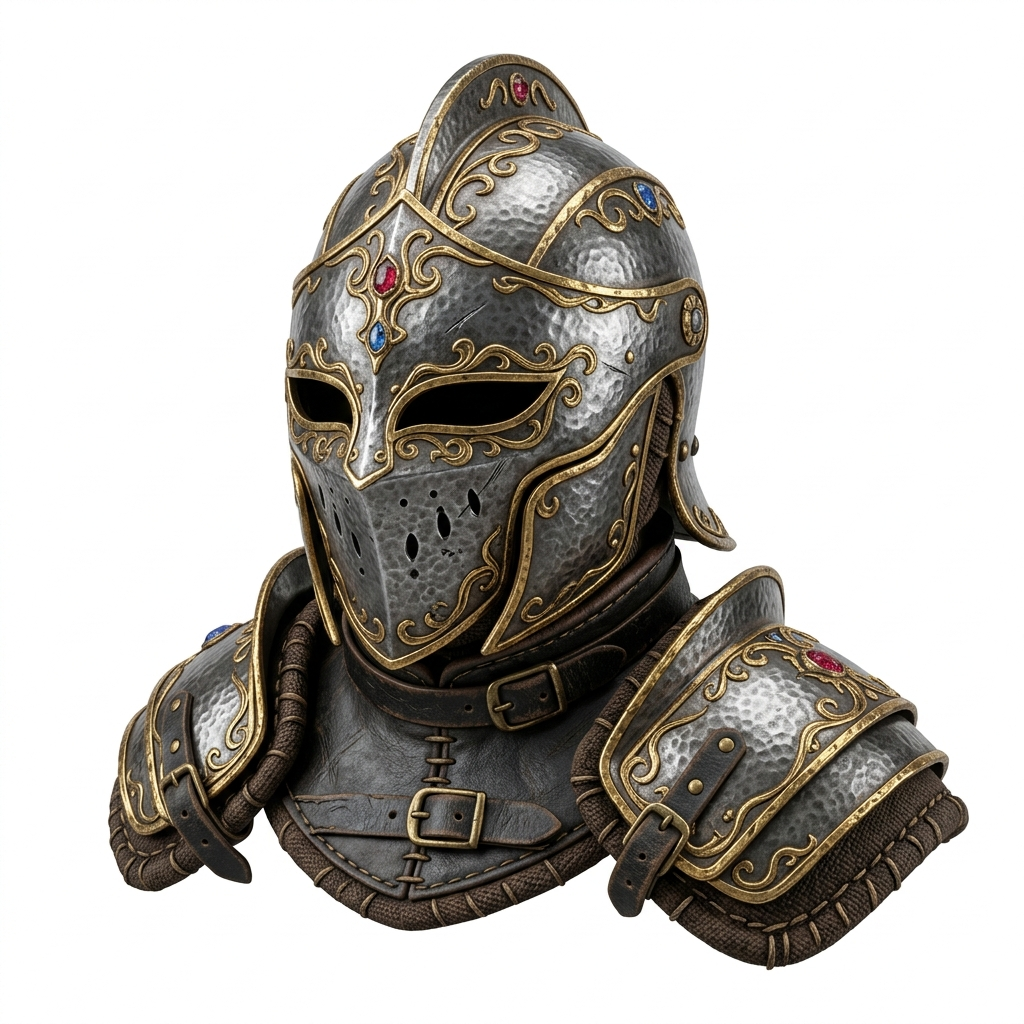
Single objects produce better first meshes. Product photos, character busts, props, helmets, icons with depth, toys, and concept objects are good candidates. Busy scenes, exact mechanical parts, architecture with many repeated details, and flat logos need extra expectation management.
If the output fails from the side or back, do not spend a long time polishing a weak reconstruction. Regenerate from a clearer input with a stronger silhouette, fewer overlaps, cleaner background, and a useful three-quarter view. Prepare the image first when the source itself is the bottleneck.
Blender cleanup checklist
- Set the working scale before building more detail or exporting elsewhere.
- Inspect normals, shading artifacts, loose fragments, and accidental sheets.
- Use target-specific cleanup: material and file-size review for web, mesh edits for a DCC workflow, or a slicer for printing.
- Use Blender mesh cleanup deliberately—its official tools include Delete Loose, Merge by Distance, and Fill Holes—but inspect the effect instead of applying a repair blindly.
- Reduce density only after deciding which features must survive. Blender’s Decimate tools can reduce face count, but can change a shape or UV/edge behavior.
- Separate major parts when you need editing control, and check material names, texture paths, and color consistency.
- Export the final target format only after testing it in the actual destination.
For the relevant Blender operations, use the official mesh-cleanup reference and the Decimate Modifier reference. A cleanup command can improve a mesh, but it cannot supply the missing truth from an unseen side of an image.
Where Image3D fits
Image3D is strongest at the draft stage: upload an image, generate a model, rotate it, and export a useful starting asset. It is not a full replacement for Blender, and that is useful clarity. The value is speed: test multiple visual ideas before deciding which one deserves cleanup.
For game assets, that can mean early prop blockouts. For ecommerce, it can mean a candidate GLB preview. For 3D printing, it means testing the shape before an actual slicer review. For concept art, it means turning a visual direction into something editable. The cleanup decision guide helps decide whether to repair, regenerate, or stop.
Related Image3D pages
- Image3D Studio
- Image to GLB generator
- Image to OBJ generator
- Import a GLB into Blender
- GLB vs OBJ vs STL
- Mesh-as-CAD-reference boundary
FAQ
Can I turn an image into a Blender model?
Use Image3D to create a first-pass mesh from a clear permitted image, export GLB or OBJ, then import and inspect it in Blender. It is a starting mesh, not exact CAD reconstruction.
Should I export GLB or OBJ for Blender?
Use GLB for a compact material-aware handoff or browser preview. Use OBJ when a simple classic mesh interchange is more useful. Inspect either import before further work.
Does Image3D replace Blender cleanup?
No. Image3D creates a starting mesh. Blender remains the editing and validation step for scale, normals, loose geometry, materials, topology, and final export.
What images work best for Blender workflows?
Single objects, product renders, props, character busts, and concept art with a clear silhouette usually provide a better starting point than flat logos or crowded scenes.
Can I use the result for games, ecommerce, or printing?
Possibly, after a target-specific check. Review mesh density, materials, scale, topology, and the actual import, browser, or slicer result before relying on the file.
Can Image3D create exact CAD from an image?
No. A first-pass mesh can be visual reference geometry, but a single image cannot establish exact dimensions, hidden geometry, tolerances, or fit.