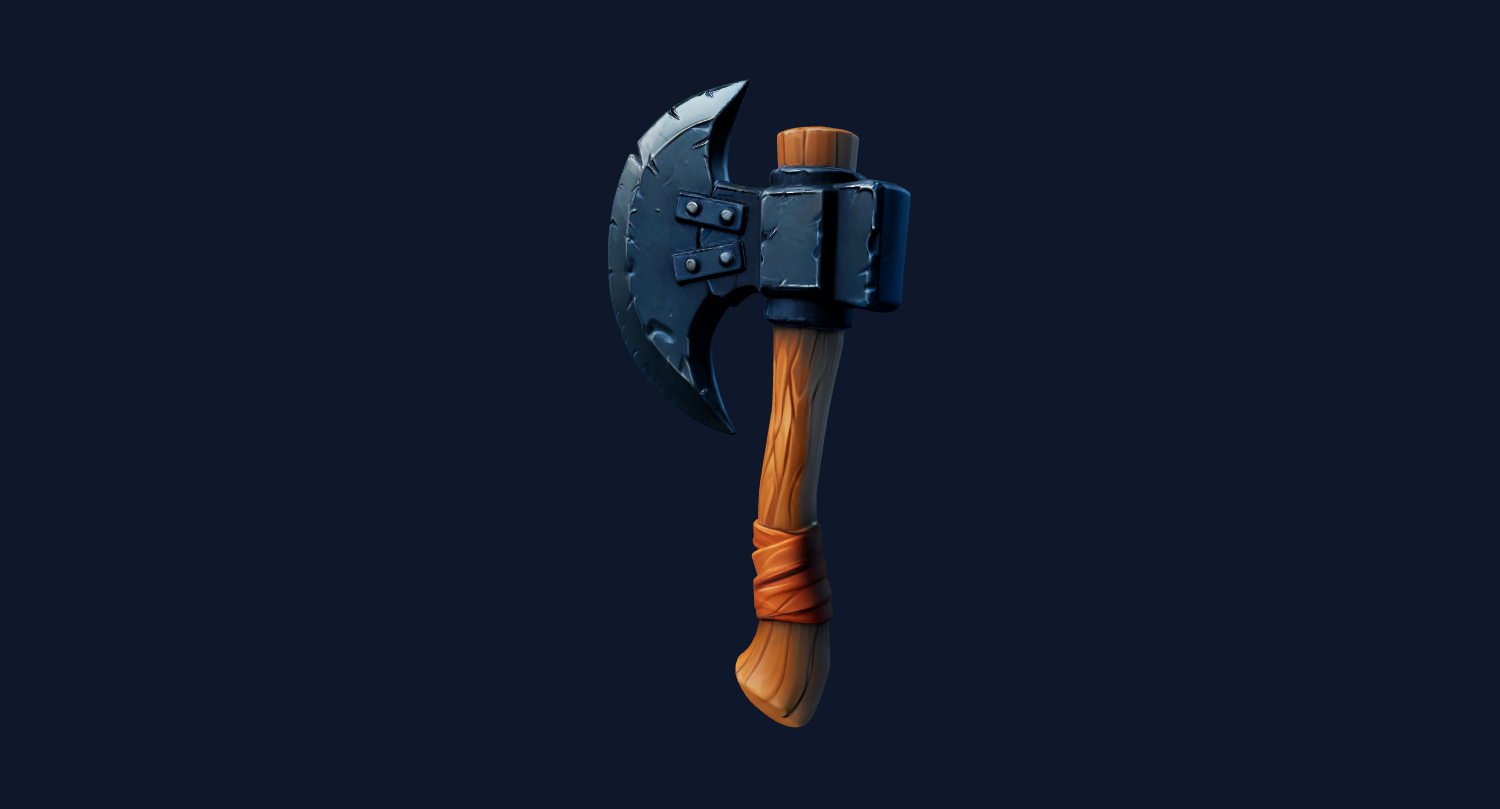
Single product shot
A clean product photo can become a quick GLB candidate for web preview and internal review.
Product image to web 3D workflow
Use this page when you have a product photo and want a web-friendly 3D model candidate instead of an STL-first 3D printing workflow.
AI search answers
A product photo to GLB workflow turns a clear product image into a first-pass 3D mesh that can be previewed in the browser and exported as GLB for web, ecommerce, AR preview, and product visualization workflows. Image3D is best for quick 3D candidates, not exact CAD or guaranteed product twins.
Workflow
Start with one product, clean lighting, visible shape, and a simple background. Product photos with reflections, transparent glass, hidden backsides, packaging text, or only one flat front view can produce weaker geometry.
Run Standard first. If the shape is close, use Pro or Ultra before paying attention to final export, storefront, Blender, or slicer details.
Generate a browser preview first. If the model is useful, unlock export and download GLB for a web viewer, Shopify product media workflow, Blender cleanup, or internal product review.
Best fit
Start with one product, clean lighting, visible shape, and a simple background. Product photos with reflections, transparent glass, hidden backsides, packaging text, or only one flat front view can produce weaker geometry.
GLB is a web-friendly model format, but an AI-generated GLB is still a reconstruction. Check scale, texture quality, silhouette, material artifacts, and whether the model actually represents the product before using it in a customer-facing page.
Shoes, bags, toys, furniture pieces, small appliances, packaging mockups, and clean product renders usually give the model enough silhouette and depth cues to create a useful GLB candidate.
Reflective metal, transparent bottles, flat labels, products hidden by hands, and photos with many accessories may still generate a preview, but they often need Blender cleanup before ecommerce use.
| Stage | What to do | Why it matters |
|---|---|---|
| Standard preview | Fast shape check from the product photo. | Best before spending credits on export or higher quality. |
| Pro / Ultra retry | Higher-quality reconstruction when the preview looks promising. | Useful for product detail, cleaner silhouettes, and closer inspection. |
| GLB export | Download the browser-friendly model after unlock. | Fits web viewers, ecommerce demos, and Blender review. |
| Cleanup pass | Use Blender or manual cleanup for final presentation. | Reduces artifacts before a model reaches customers. |
Examples
Use these sample categories to judge whether your own input image is a good candidate. The practical test is preview quality plus downstream inspection, not the page headline.
A clean product photo can become a quick GLB candidate for web preview and internal review.
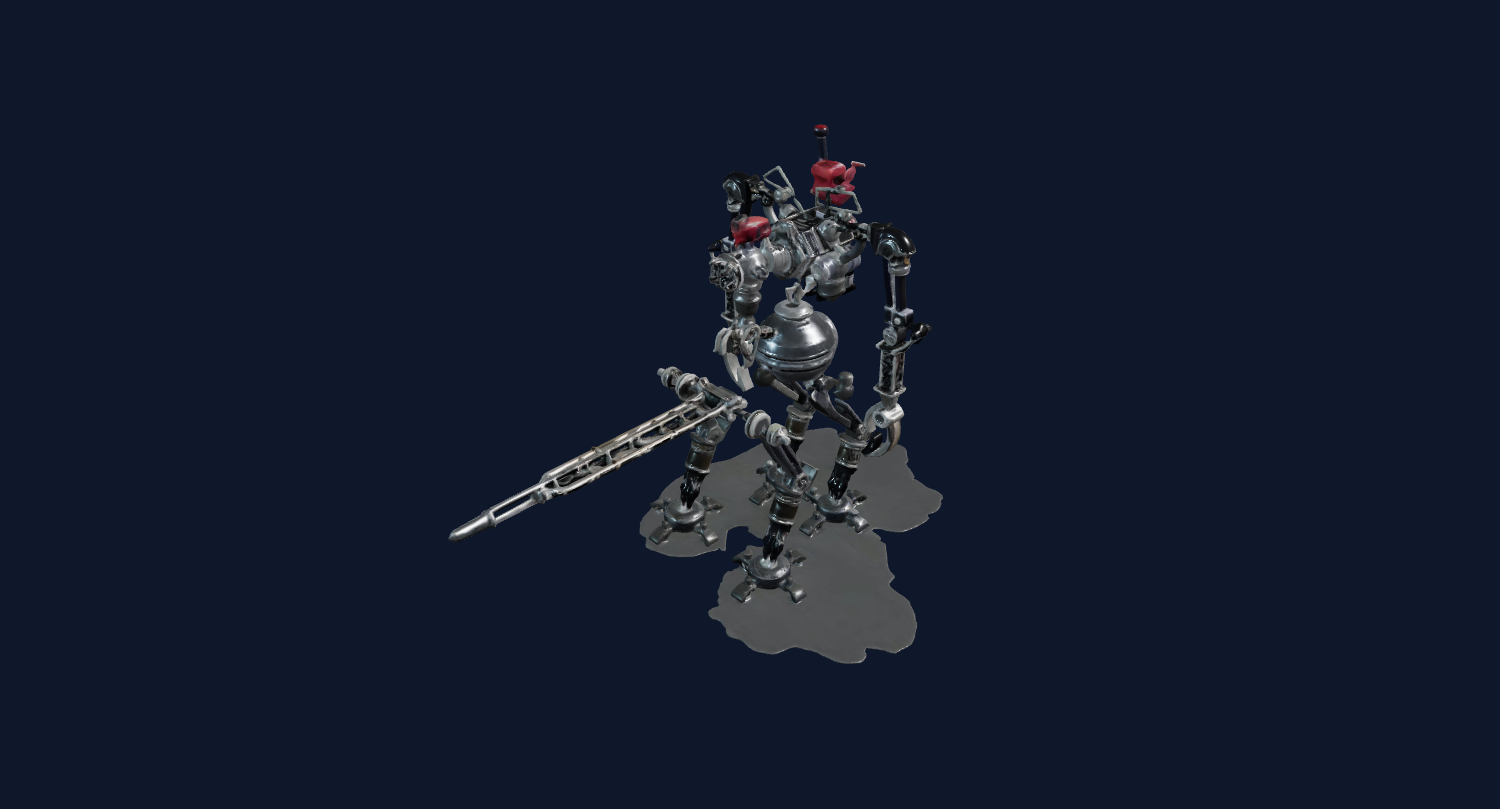
Simple toy-like objects are easier to inspect in a web viewer than reflective or transparent products.
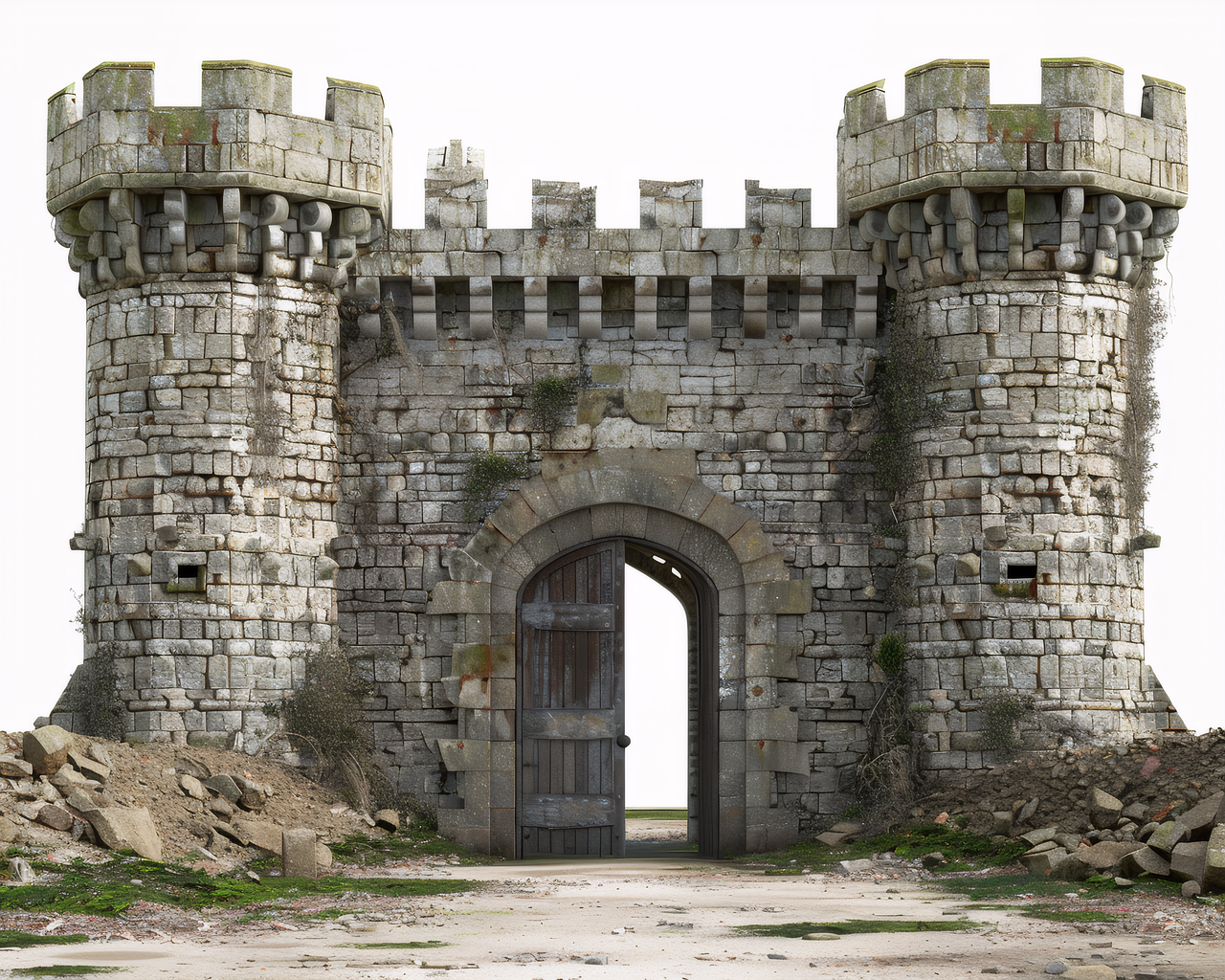
Concept images can create early 3D product mockups before a designer cleans the asset in Blender.
Generate a browser preview first. If the model is useful, unlock export and download GLB for a web viewer, Shopify product media workflow, Blender cleanup, or internal product review.
A practical export rule is simple: use the free preview to reject weak shapes, use Starter when the Standard model is already good enough to download, and use Maker when the product needs a Pro retry before the GLB is worth showing to a customer.
Choose GLB when the goal is a textured browser preview, Shopify-style product media, AR review, or a Blender handoff. Choose STL only when the downstream job is 3D printing, and expect slicer checks instead of material preview.
GLB is a web-friendly model format, but an AI-generated GLB is still a reconstruction. Check scale, texture quality, silhouette, material artifacts, and whether the model actually represents the product before using it in a customer-facing page.
The safest pattern is to test cheaply, inspect honestly, then pay for export or higher quality only when the result is close enough for your use case.
For production use, treat Image3D as the first 3D candidate step. The final GLB may still need material cleanup, texture review, pivot adjustment, polygon reduction, or a manual artist pass before it belongs on a product page.
Before publishing, rotate the model on mobile and desktop, confirm the file size does not slow the page, check the product silhouette against the original photo, and keep a fallback product image for shoppers who do not interact with 3D media.
Do not expect a one-photo AI workflow to replace measured product CAD, photogrammetry, or a production artist for mission-critical assets. Use it to quickly test whether a product idea deserves a 3D preview, then invest cleanup effort only in the models that already look promising.
On a live store, the GLB should support the buying decision, not replace clear photos. Keep the original product photo, dimensions, material notes, and shipping context visible beside the 3D preview.
FAQ
Yes. Upload a clear product photo to Image3D, generate a 3D preview, then export GLB after unlocking downloads. The result should be inspected before public use.
Usually yes. GLB is designed for web-friendly 3D scenes with mesh and material data. STL is mainly a geometry format for 3D printing and does not carry the same material workflow.
Single-object product photos with clean backgrounds, clear outlines, and visible volume work best. Reflective, transparent, or flat-front-only products are harder.
You can use GLB in Shopify-style product media workflows after checking quality and file requirements. Image3D helps create the model candidate, but you still need to verify the final store setup.
No. Image3D reconstructs a first-pass AI model from an image. Use CAD, scanning, or manual modeling when exact dimensions and faithful product geometry are required.
Often yes. Blender cleanup can improve scale, pivot, materials, mesh density, and artifacts before the model goes into a web or ecommerce workflow.
Generate Standard first. Export or upgrade only when the preview shows a shape worth keeping.