Image to OBJ: preview the shape, then check the export
Use a clear image of one subject to generate an AI-reconstructed 3D mesh. Inspect it in the browser before paying for downloads. The current Studio OBJ export is a geometry file: it does not include an MTL file or texture images.
An estimated shape, not an exact copy
Choose a well-lit photo or render with one unobstructed subject and a simple background. Thin parts, glass, overlapping objects and hidden surfaces can be reconstructed incorrectly. One image does not establish real dimensions or the unseen back of an object.
Rotate the preview and inspect the silhouette, back, underside and small details. Treat the result as a starting mesh for editing. No input guarantees accurate geometry, production-ready topology, printability or a fixed generation time.
OBJ, MTL and textures: what you receive
OBJ stores mesh geometry and can contain UV coordinates and normals. An MTL file describes materials separately and may reference texture images. UV coordinates alone are not a texture image.
Image3D Studio currently downloads one .obj file. It does not create an accompanying .mtl or texture folder. A textured browser preview therefore does not promise a textured OBJ package. Maker unlocks export access; it does not add these missing files.
If you need the generated appearance, start with the GLB download and inspect its actual materials in Blender. GLB can carry mesh, material and image data together and is editable after import. Keep the original GLB before making a separate OBJ conversion.
From preview to an editable file
- Open Studio and upload a clear image. Start with the free Standard browser preview; availability and limits are shown in Studio.
- Inspect the model before choosing a paid export. Decide whether geometry alone is sufficient or you need the material-bearing GLB workflow.
- With the required download entitlement, choose OBJ for the mesh or GLB for the original generated asset. Check that the browser saved a readable file; a started download is not proof of a successful save.
Five checks in Blender
- Import: choose File → Import → Wavefront (.obj). For GLB, use glTF 2.0 (.glb/.gltf). Confirm that the expected object appears. Menu wording may vary by Blender version.
- Scale and orientation: verify dimensions and axes for your intended use. A generated model is not a measured object; do not assume millimetres or metres.
- Geometry: inspect the back, underside, disconnected parts, holes and face orientation. Check the face count and simplify or repair the mesh as needed. OBJ export does not add a rig or repair topology.
- Materials: inspect Material Preview and the Shader Editor. A Studio OBJ may look grey because no material package is supplied. For an OBJ from another source, check its mtllib reference, MTL and texture paths; preserve their relative paths.
- For an OBJ-plus-materials handoff, import the GLB, inspect or rebuild its materials, then export OBJ from Blender with material export enabled. Reopen the resulting files in a clean scene. Some PBR appearance may need manual adjustment; do not assume a lossless conversion.
Inspect the existing Dragon model
This approved Dragon example is an existing GLB asset, not a new conversion of your image or proof of an OBJ material package. The linked case documents a separate GLB-to-STL workflow; it does not verify OBJ materials. Use a 3D viewer to inspect the geometry of your own result.
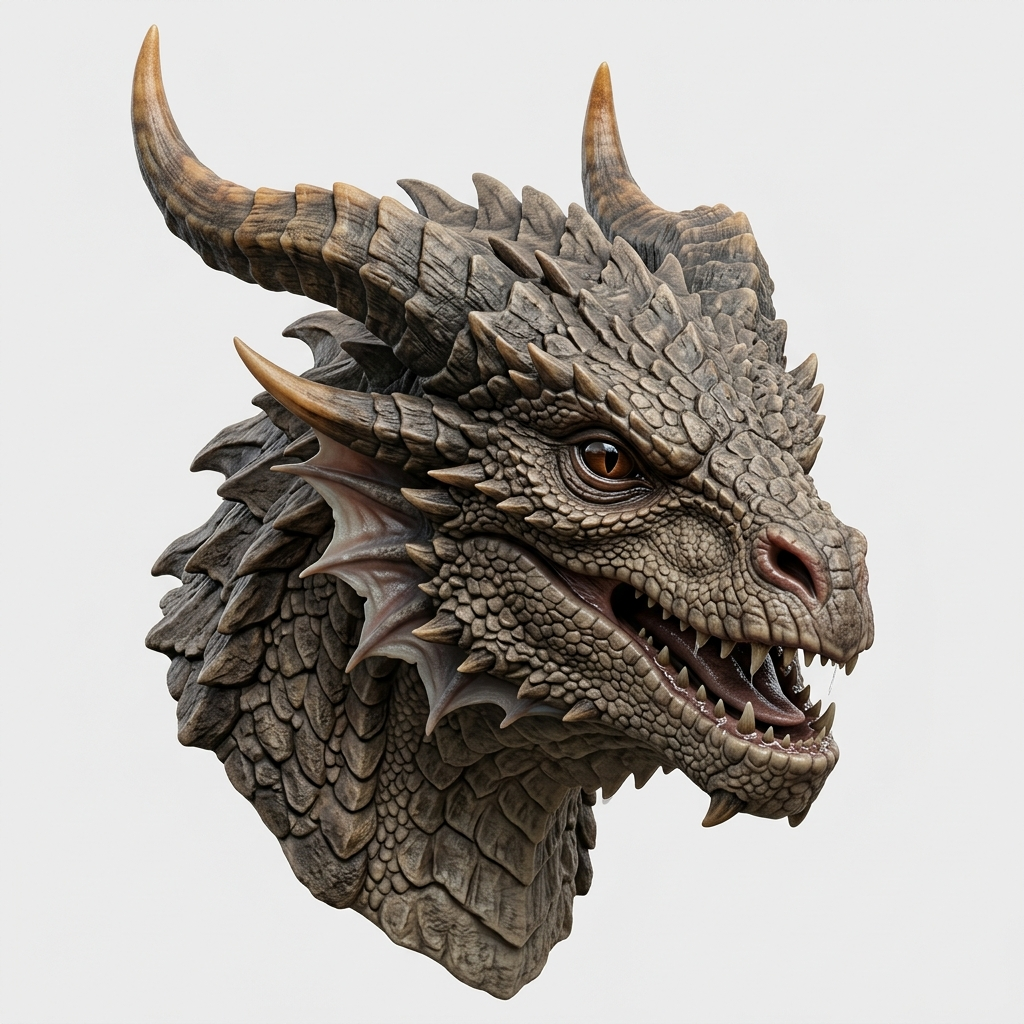
Read the existing Dragon conversion case · Inspect a GLB file
Free preview, paid downloads
Start with the free Standard browser preview. Maker is $9.99 once for 1,000 credits, Pro access and existing model downloads including OBJ and GLB. Credits do not expire. Maker is not a subscription. Ultra access is excluded. A ready model and the appropriate account entitlement are still required.
Payment does not improve the model you already previewed or automatically generate a new one. Review the result and file requirements before buying. If you already have download access, use your existing entitlement.
Before you export
Will every photo produce an accurate OBJ?
No. AI estimates the shape, including hidden areas. Clear single-subject images are a better starting point, but you must inspect the actual model.
Why does my OBJ look grey?
The current Studio OBJ export does not include an MTL or texture images. Inspect a GLB download if you need its materials; use a separate editor workflow for OBJ plus materials.
Can Blender edit GLB as well as OBJ?
Yes. Import GLB with glTF 2.0 or OBJ with Wavefront. Choose based on the geometry and material data you need, not whether the file is text or binary.