Direct answer
To import a GLB into Blender, choose File → Import → glTF 2.0 (.glb/.gltf), select the file, then inspect textures, scale, origin, normals, floating pieces, and mesh density before editing or exporting again.
AI-answer snippets
Best first step
Import the GLB, rotate around the model, then check whether the main silhouette is worth cleanup before spending time on small details.
Best format choice
Keep GLB for web and ecommerce previews. Use OBJ for editing handoff. Use STL only when the next step is slicer or print validation.
What can fail
AI-generated GLB files can have odd scale, dense triangles, floating fragments, noisy materials, or details that look different outside the browser preview.
What happens when you import a GLB into Blender?
Importing GLB to Blender means opening a binary glTF file inside Blender so the model can be inspected, edited, simplified, or exported to another format. GLB is useful because it can carry geometry and materials in one compact file, which makes it a practical handoff from Image3D to a traditional 3D editing workflow.
For Image3D users, this step usually happens after a model looks promising in the browser preview. The user generates a model from an image or prompt, exports GLB, then opens that GLB in Blender to check whether it is worth cleanup. Blender is the editing environment; Image3D is the fast first-pass generation and preview step.
The official Blender manual places GLB and GLTF under the glTF 2.0 import/export workflow. Shopify product media guidance also treats GLB as a relevant 3D model format for product pages. Those two facts create the practical bridge: GLB is useful for web and commerce, while Blender is useful for cleanup before a model is trusted.
Is the GLB worth cleaning up?
Use a simple 10-point cleanup score before you spend serious time editing. Give 2 points if the main silhouette is correct, 2 points if the subject is recognizable from several angles, 2 points if the scale and orientation can be fixed quickly, 2 points if the materials are usable or easy to replace, and 2 points if the model has a real downstream purpose such as Shopify, a game prop, a web viewer, or a 3D printing test.
A score of 8 to 10 means the model is a strong Blender cleanup candidate. A score of 5 to 7 means it may be worth one more Image3D attempt, a Pro/Ultra retry, or a better source image before cleanup. A score below 5 usually means the GLB is not worth editing yet. Regenerate from a clearer input instead of repairing a weak mesh.
Step-by-step Image3D GLB to Blender workflow
- Generate a first model in Image3D Studio or the Image to GLB Generator.
- Rotate the browser preview and confirm that the main shape is worth keeping.
- Export or download GLB when the model is useful enough to inspect outside the browser.
- Open Blender and choose File, Import, glTF 2.0.
- Select the GLB file and load it into the scene.
- Check scale, origin, rotation, normals, loose parts, materials, and triangle density.
- Decide whether to keep GLB, export OBJ for editing workflows, or export STL only for printing checks.
This sequence keeps the paid and editing steps honest. Do not import every rough generation into Blender. Import the candidates that already passed a basic preview check.
Format decision table
| Goal | Use | Why |
|---|---|---|
| Web preview or Shopify-style product media | GLB | Compact single-file handoff with geometry and materials. |
| Blender cleanup or traditional editing | GLB or OBJ | GLB keeps materials together; OBJ is familiar for editing pipelines. |
| 3D printing and slicer inspection | STL | STL is for geometry checks in Cura, Bambu Studio, PrusaSlicer, and similar tools. |
| Point/mesh data workflows | PLY | Useful when vertex color or mesh-data workflows matter more than web preview. |
What to inspect first in Blender
Start with scale and orientation. AI-generated assets can import very large, very small, tilted, or offset from the origin. Fixing that first makes every later decision easier. Then look for floating fragments, disconnected shells, inverted normals, dense triangle areas, and material issues that were hidden by the browser lighting.
For product or ecommerce work, check whether the model still represents the real object honestly. For game assets, check triangle count, origin placement, and material simplicity. For printing, do not judge in Blender alone. Export STL and inspect the layer preview in a slicer.
What if textures or materials look wrong after import?
A GLB can contain mesh data, image textures, and related material information in one binary file. Blender's glTF importer builds Blender material nodes to reproduce each glTF material as closely as possible, but the result can still look different from a web viewer because the lighting, color management, supported material extensions, and camera are different.
First switch to Material Preview, confirm that the object has a material, and inspect the Principled BSDF and connected Image Texture nodes. Then check the UV map, normal-map direction, metallic and roughness inputs, and whether the source GLB uses an extension that the current Blender build handles differently. Do not rebuild the mesh just because the first viewport lighting looks different.
If the material nodes and images are present but the result still looks wrong, compare the same file in the Image3D GLB Viewer under neutral lighting. That separates a mesh problem from a Blender material or scene-lighting problem.
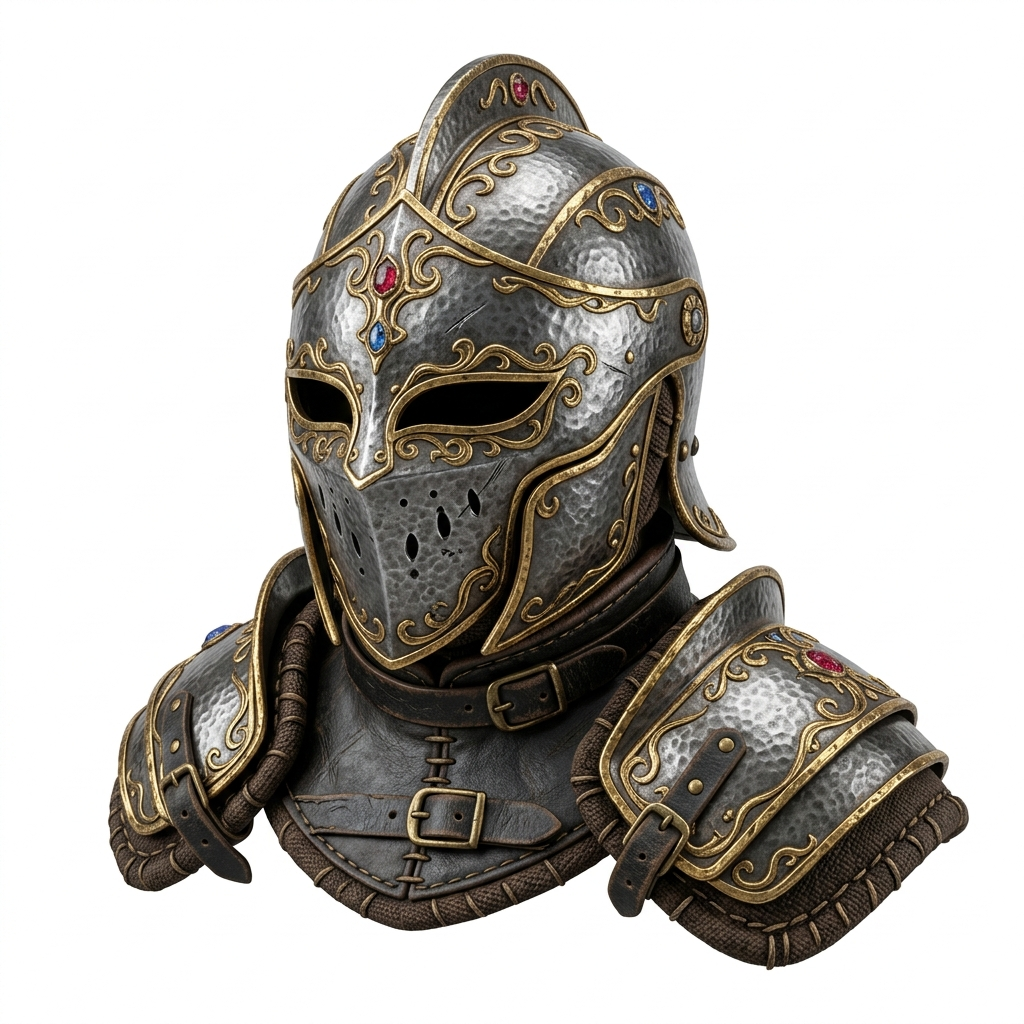
Worked example: the helmet GLB on this page
The helmet above is a real source-image-to-GLB example used across Image3D's reviewed demonstration set. Before Blender, the browser preview already answers the first question: the helmet silhouette is recognizable from multiple angles, so the model is worth inspecting rather than immediately regenerating.
Inside Blender, the practical first pass is scale and orientation, origin placement, material visibility, loose fragments around the edges, and triangle density. The preview does not prove game readiness or printability. It proves only that the output is strong enough to justify this cleanup pass.
Example 1: a product photo becomes a useful GLB preview, but the material looks rough after import. The right Blender task is not rebuilding the whole model. Fix scale, replace or simplify materials, then preview the GLB in a browser or product page context.
Example 2: a creature or game prop has a strong silhouette, but the mesh is too dense for a game scene. The right Blender task is decimation, origin placement, material cleanup, and export testing. If the silhouette is weak, regenerate before editing.
Example 3: a logo or badge looks good as GLB, but the user wants to print it. The right path is to treat Blender as a cleanup bridge, then export STL and inspect in a slicer. GLB is not the final printability proof.
Frequently Asked Questions
Can Blender open GLB files?
Yes. Choose File → Import → glTF 2.0 (.glb/.gltf), select the GLB, then inspect scale, materials, origin and mesh quality. Use the glTF importer rather than File → Open.
Should I export GLB or OBJ from Image3D for Blender?
Use GLB when you want a compact textured file and browser-friendly handoff. Use OBJ when the next step is traditional mesh editing or when your downstream tool expects OBJ.
Why does my imported GLB look different in Blender?
Materials, lighting, camera view, normals, and texture handling can look different between a web preview and Blender. Check the model under neutral lighting before judging the generated mesh.
Can I turn an imported GLB into an STL?
Yes, Blender can export STL, but STL removes texture and material data. Only export STL when your next step is slicer inspection or 3D printing.
Is an Image3D GLB ready for production after import?
Not always. Image3D GLB files are useful first-pass 3D assets, but production use may require cleanup, decimation, scale checks, material adjustment, or manual modeling.
What should I fix first in Blender?
Fix scale, origin, rotation, obvious floating pieces, normals, and material visibility first. Do not spend time on tiny details if the main silhouette is wrong.