Image to STL for 3D Printing: Workflow and Checks
Use this practical checklist when you convert an image into an STL file. The goal is not to promise a guaranteed print-ready file; the goal is to spot common AI mesh problems before they waste filament, time, or paid credits.
Printability reality check
A good 3D preview is not the same as a printable STL.
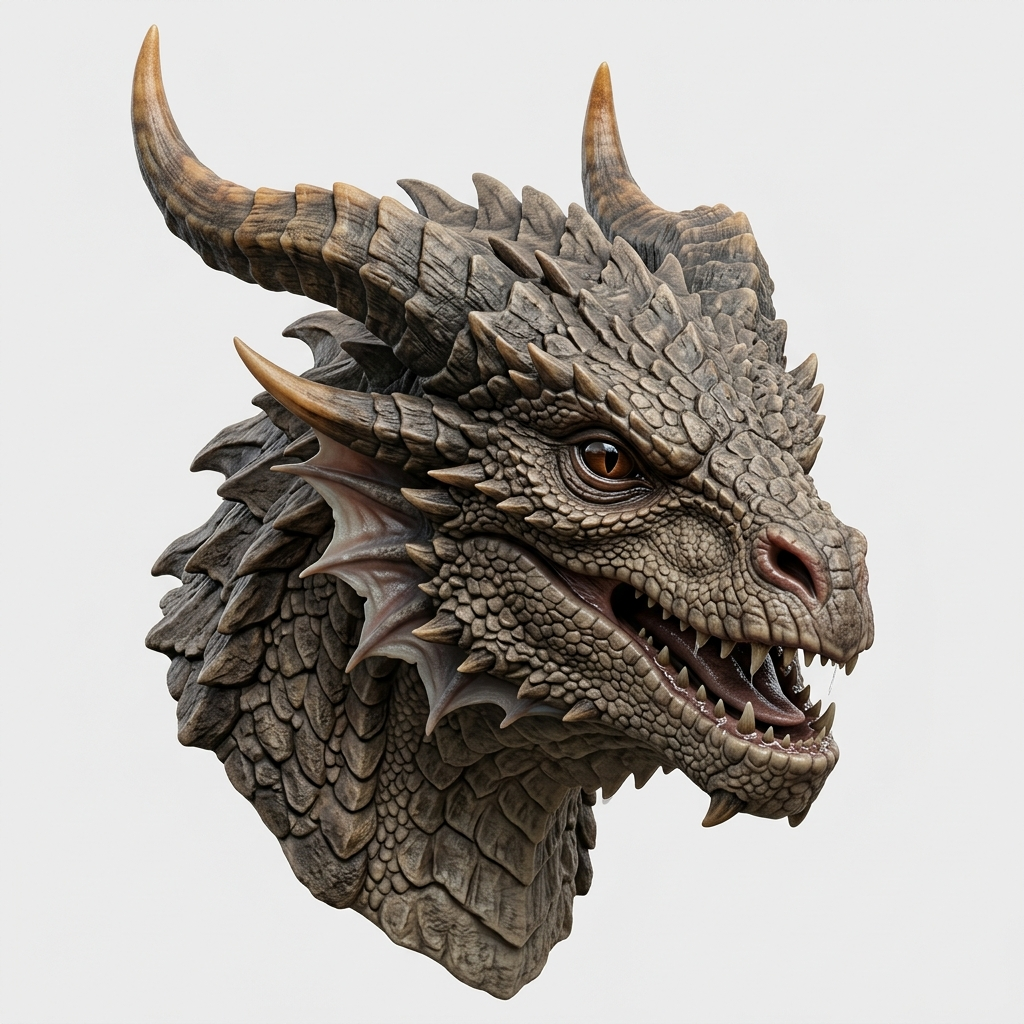
For decorative or high-detail inputs, the correct workflow is to generate the model, export STL only when the shape is promising, then inspect the sliced layers. Thin horns, teeth, hair, text, and disconnected details can fail even when the web preview looks convincing.
Ask for a printable reviewDirect answer
To turn an image into an STL for 3D printing, upload a clear single-object image, generate a 3D mesh, export STL, then inspect the file in a slicer before printing. Check scale, watertight risk, thin walls, floating parts, supports, and whether the sliced preview matches the object you expected.
1. Start with a print-friendly image
The source image matters because image-to-3D models infer depth from visual cues. A front-facing product photo, character bust, relief design, prop, or single object usually works better than a crowded scene. The best inputs have one main subject, clean object boundaries, visible shape, and enough light to reveal form.
If the image has hair-like strands, tiny jewelry, thin text, lace, wires, transparent details, or many small disconnected pieces, the browser preview may still look interesting while the STL becomes fragile in a slicer. That does not mean the idea is bad. It means the model needs simplification, repair, or a different print strategy.
2. Generate the model and inspect the shape first
Use Image3D Studio or the Image to STL generator to generate a first mesh. Before downloading, rotate the preview and look for isolated islands, paper-thin geometry, collapsed holes, or shapes that only look correct from the front. If the object fails at this stage, changing the input image is usually better than forcing export.
For 3D printing, do not treat a good browser render as proof that a model will slice. A render can hide non-manifold edges, tiny shells, or surfaces that overlap. The real test is what the slicer does with the STL.
3. Export STL, then open it in a slicer
STL is a geometry format. It does not carry color textures the way GLB can. That makes it a useful format for print workflows, but it also means print quality depends on the mesh shape itself. After export, open the STL in Cura, PrusaSlicer, Bambu Studio, OrcaSlicer, or another slicer.
Slicer checklist
- Check whether the model appears at a usable scale.
- Slice the model and inspect the layer preview, not only the 3D viewport.
- Look for missing walls, floating pieces, and isolated islands.
- Check whether thin details disappear after slicing.
- Add supports only after the base geometry looks coherent.
- Run mesh repair when your slicer flags non-manifold or open geometry.
Worked example: when a preview should not become a print
Imagine a user uploads a detailed logo, dense text slide, or ornate character image. The browser preview may show a recognizable silhouette, but the STL can still fail because the model contains hundreds of tiny raised strokes, disconnected islands, or surfaces that are too thin for the chosen nozzle size. This is the common gap between "the AI generated something" and "this can be printed."
In that case, the right answer is not always to buy a higher quality generation. A better first fix is to simplify the source image: remove small text, crop to one subject, thicken relief features, use a stronger three-quarter view, or create a badge-style version with fewer small floating elements. After the simplified version slices cleanly, a higher quality retry makes more sense.
4. Understand common failure modes
The most common image-to-STL issue is not that the AI model looks bad. It is that the model looks plausible in a web preview but contains geometry that a printer cannot physically produce. Thin text, hair, fine relief lines, and decorative spikes are common examples. They may survive the preview but vanish or fragment when sliced.
If the STL is close but not usable, the next step is usually cleanup: scale adjustment, mesh repair, wall thickening, remeshing, or manual sculpting. For high-value prints, use Printable Model Fix after you have a promising generated result.
What each warning usually means
- Non-manifold edges: the mesh has open or inconsistent surfaces that need repair before reliable slicing.
- Floating islands: the model has disconnected parts that may print separately, fail, or require supports.
- Very thin walls: decorative detail may be smaller than the nozzle and vanish in the layer preview.
- Too many supports: the model may need a different orientation, a flatter base, or manual cleanup.
- Wrong scale: the model may need measurement and resizing before the print is useful.
5. Pick the right Image3D mode
Standard generation is useful for fast testing because new users can try several quick ideas with the free credits. Pro and Ultra are better when the shape is close and you need more detail. Still, higher quality does not automatically guarantee printability. For print work, the best workflow is generate, inspect, slice, then repair only the models that are worth keeping.
When a result finally slices well, record the source image, generation quality, exported format, slicer, scale, support settings, and material assumptions. This record makes the next print repeatable and helps you decide whether future Image3D results need only export, a Pro retry, or a manual cleanup pass.
Related Image3D pages
- 3D print from image workflow
- Image to STL guide
- Image to GLB generator
- Image to OBJ generator
- Best AI 3D model generators
FAQ
Can Image3D make STL files from images?
Yes. Image3D can generate a 3D mesh from an image and export STL for slicers. The exported STL should still be checked before printing.
Does Image3D guarantee watertight STL output?
No. AI-generated geometry can need repair. The honest workflow is to inspect the STL in a slicer and fix or regenerate when the mesh is fragile.
Should I use GLB or STL for printing?
Use STL for printing. Use GLB when you want a textured 3D preview for a web page, Shopify, or a browser-based viewer.
What if my slicer shows missing parts?
Try scaling up, simplifying the source image, regenerating, or repairing the mesh. Thin features often disappear when they are below printable wall thickness.
Can I ask for a manual printability check?
Yes. If the generated model is close but not printable, the Printable Model Fix service can review the file and suggest a cleanup path.