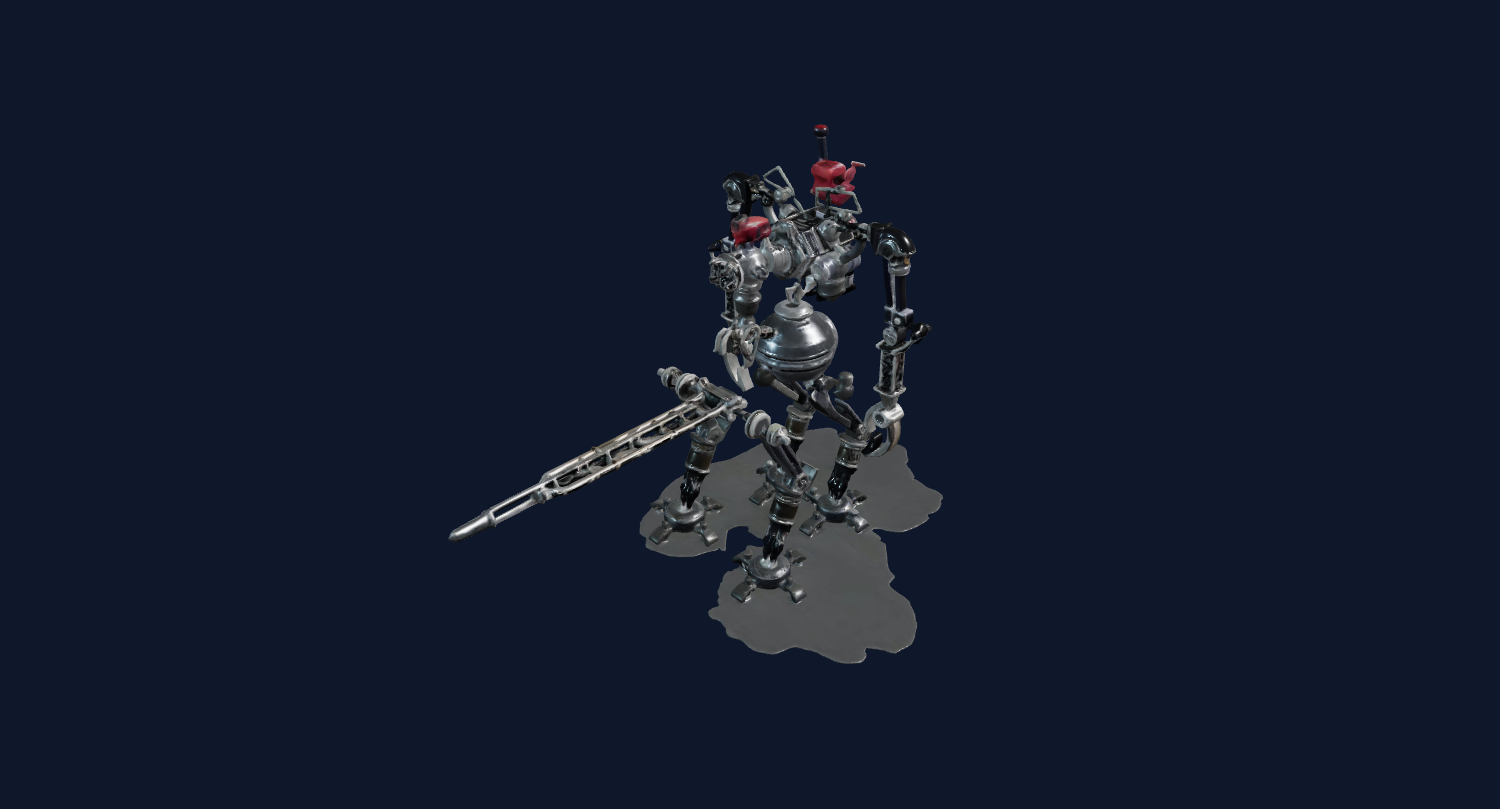
Toy shape
Simple toy-like objects are easier to inspect than complex human poses.
AI-assisted 3D printing ideas
Use this workflow when you are exploring printable ideas from photos, AI art, logos, product shapes, toys, collectibles, or tabletop props.
Direct answer
A 3D printing AI generator helps turn a visual idea into a printable-model candidate. Image3D can generate a first-pass mesh from an image, export STL after unlock, and route the file into slicer checks for scale, wall thickness, supports, and fragile details.
Key takeaways
Generate candidates. Use Image3D to test printable ideas quickly, not to guarantee a finished manufacturing file.
Inspect before export. Rotate the preview and unlock downloads only when the main shape is worth checking in a slicer.
Use STL carefully. STL is the slicer format, but it still needs scale, wall thickness, supports, islands, and manifold checks.
CAD still matters. Exact mechanical parts, tight tolerances, and replacement components should be modeled in CAD.
Workflow
Choose images with one obvious subject and visible volume. Photos with reflections, hair, hands, busy backgrounds, or side-only views can produce distorted meshes.
Use Standard for a fast shape check. Use Pro or Ultra when the input is promising and you need stronger detail before export.
Export STL after preview and paid unlock. Slicer inspection is part of the workflow, not an optional afterthought, because AI meshes can look fine in a browser but fail during layer preview.
Best fit
Choose images with one obvious subject and visible volume. Photos with reflections, hair, hands, busy backgrounds, or side-only views can produce distorted meshes.
This page does not promise a guaranteed print-ready model. It helps you create and evaluate a candidate that may still need orientation, supports, repair, or cleanup.
| Stage | What to do | Why it matters |
|---|---|---|
| Standard | Run a cheap first preview. | Confirms whether the silhouette and main volume are worth pursuing. |
| Pro | Retry when the first result is close. | Improves detail before export and paid download decisions. |
| Ultra | Use for high-value final checks. | Best when print detail, figurine quality, or close inspection matters. |
| Printability | Inspect in slicer or request help. | Finds thin walls, islands, support issues, and geometry failures. |
Examples
These examples show source material that can produce useful first-pass meshes. They are not promises of guaranteed printable output.
Simple toy-like objects are easier to inspect than complex human poses.
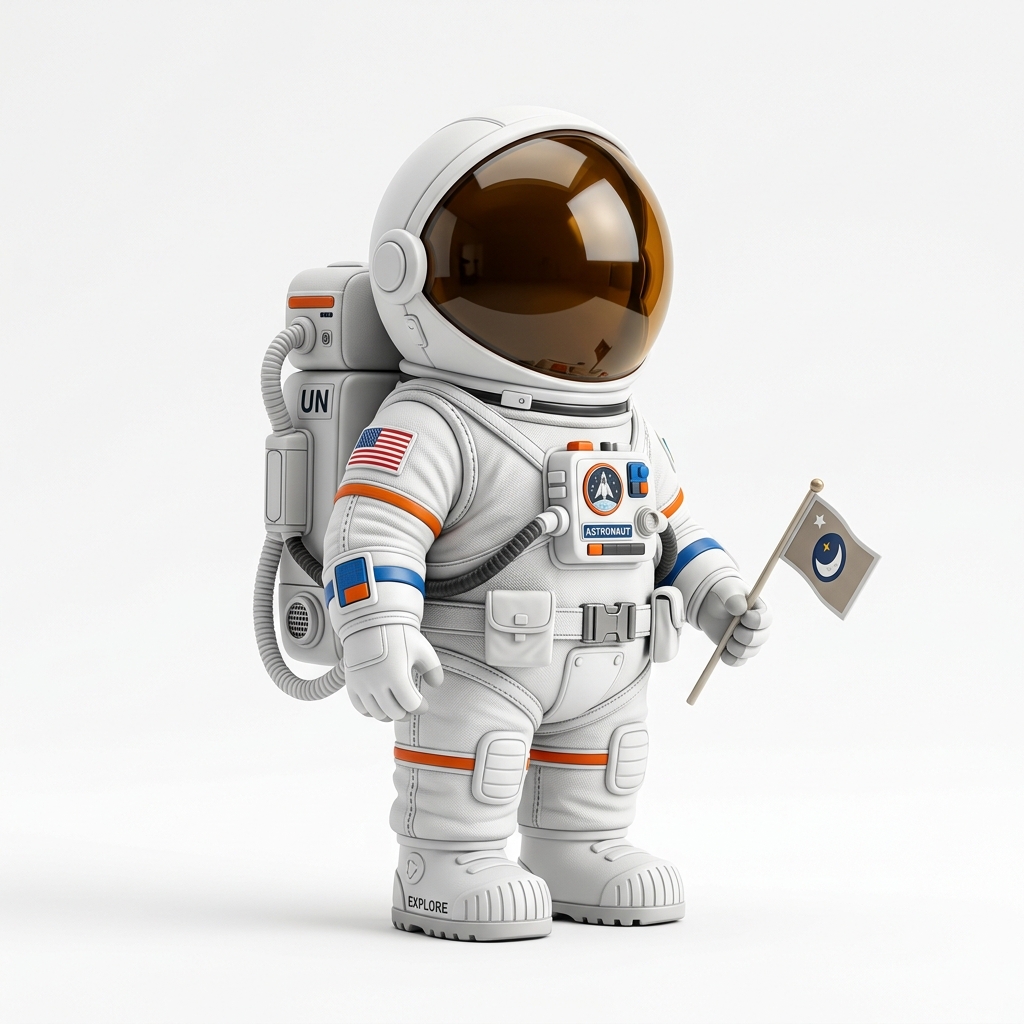
Figurine ideas are valuable but can need cleanup around face, hair, hands, and accessories.
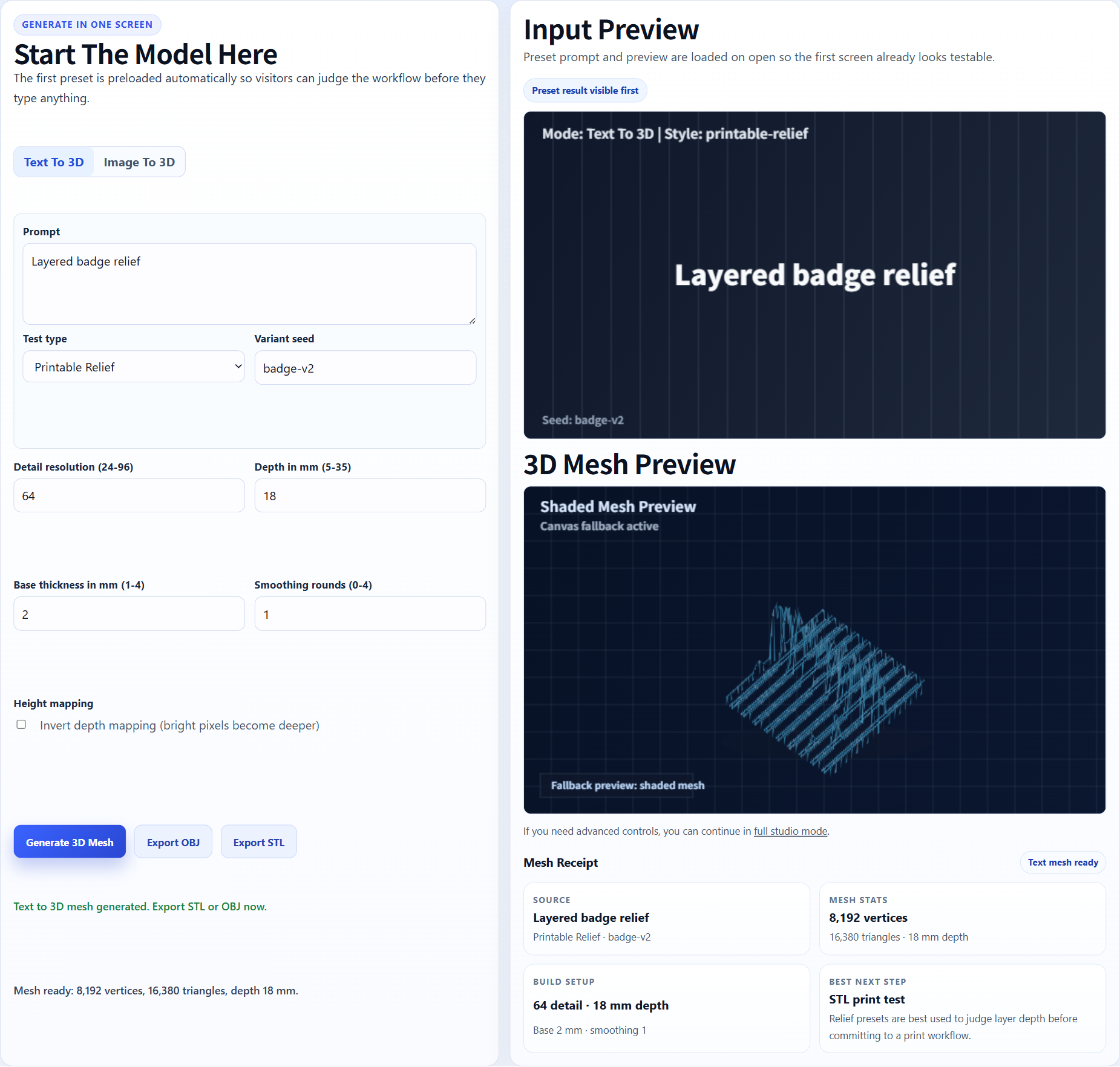
Flat graphics can become raised relief candidates for signs and plaques.
Print-first checks
A 3D printing AI generator should be used like a fast design exploration tool, not like a guaranteed manufacturing pipeline. The important moment is after the preview appears and before you spend credits to download the file. At that point you can already answer several practical questions: does the object have a stable base, does the pose make sense for supports, are there thin details that will snap, and does the model preserve the one thing that made the original image worth printing?
This matters because 3D printing has failure modes that normal image generators do not have. A picture can look beautiful while the printed part is impossible. A model can look exciting in a web viewer while the slicer exposes non-manifold edges, walls thinner than the nozzle, floating decoration, or an unsupported overhang. For that reason, the best user path is not upload, generate, download, print. The better path is upload, generate, inspect, unlock only promising files, slice, then decide whether the print is worth material and time.
The main body should read correctly from several angles. If the preview only works from the front, the STL may be awkward to orient or repair.
AI models may not export at a useful physical size. Plan to check millimeters, bed fit, and intended display size in the slicer.
Arms, horns, handles, wings, and long accessories often need supports or thicker redesign. If the preview has spaghetti-like detail, do not expect a reliable print.
Soft surfaces can still be useful for toys and rough props. Sharp mechanical parts, tight holes, and exact mating surfaces still belong in CAD.
Use Image3D for quick printable candidates: toy concepts, tabletop props, badges, mascot tests, fantasy objects, product-shape mockups, and early model exploration. The value is speed. You can test whether an image has printable 3D potential before asking a designer or opening a full modeling workflow.
Do not treat the first exported STL as ready for a customer print, exact replacement part, safety-critical component, or tight assembly. The correct workflow is preview, export only promising models, inspect layer preview, fix obvious mesh problems, and print a small test before committing material and time.
Export STL after preview and paid unlock. Slicer inspection is part of the workflow, not an optional afterthought, because AI meshes can look fine in a browser but fail during layer preview.
This page does not promise a guaranteed print-ready model. It helps you create and evaluate a candidate that may still need orientation, supports, repair, or cleanup.
For serious use, expect iteration. AI meshes can be useful quickly, but production prints may still need cleanup, base work, support planning, decimation, or repair.
FAQ
Yes. AI can generate a mesh and export STL, but you still need to inspect the result in a slicer before printing.
Single-subject images with clear silhouettes, good lighting, and simple backgrounds usually work best.
Browser previews can hide thin walls, disconnected parts, inverted normals, non-manifold geometry, or bad scale. Slicer layer preview reveals these issues.
Start with Standard to judge shape. Use Pro or Ultra if the model is close and the input deserves a higher-detail retry.
No. Use CAD for exact mechanical parts. Image3D is better for creative prints, drafts, props, badges, toys, and figurine-style experiments.
Generate Standard first. Use higher quality or export only when the result is worth keeping.
The best use case for a 3D printing AI generator is early exploration. It helps makers test five or ten visual ideas quickly, then spend export credits and printing time on the one or two candidates that actually survive preview. That workflow is especially useful for cosplay props, toys, classroom demos, decorative signs, tabletop terrain, and prototype shapes where exact CAD dimensions are less important than speed and visual fit.
If the first preview is weak, improve the image before spending more credits.