Is an AI Generated STL Printable?
An AI-generated STL can become a printable file, but the browser preview is not the final proof. The real test is scale, mesh integrity, thin-detail survival, and slicer layer preview.
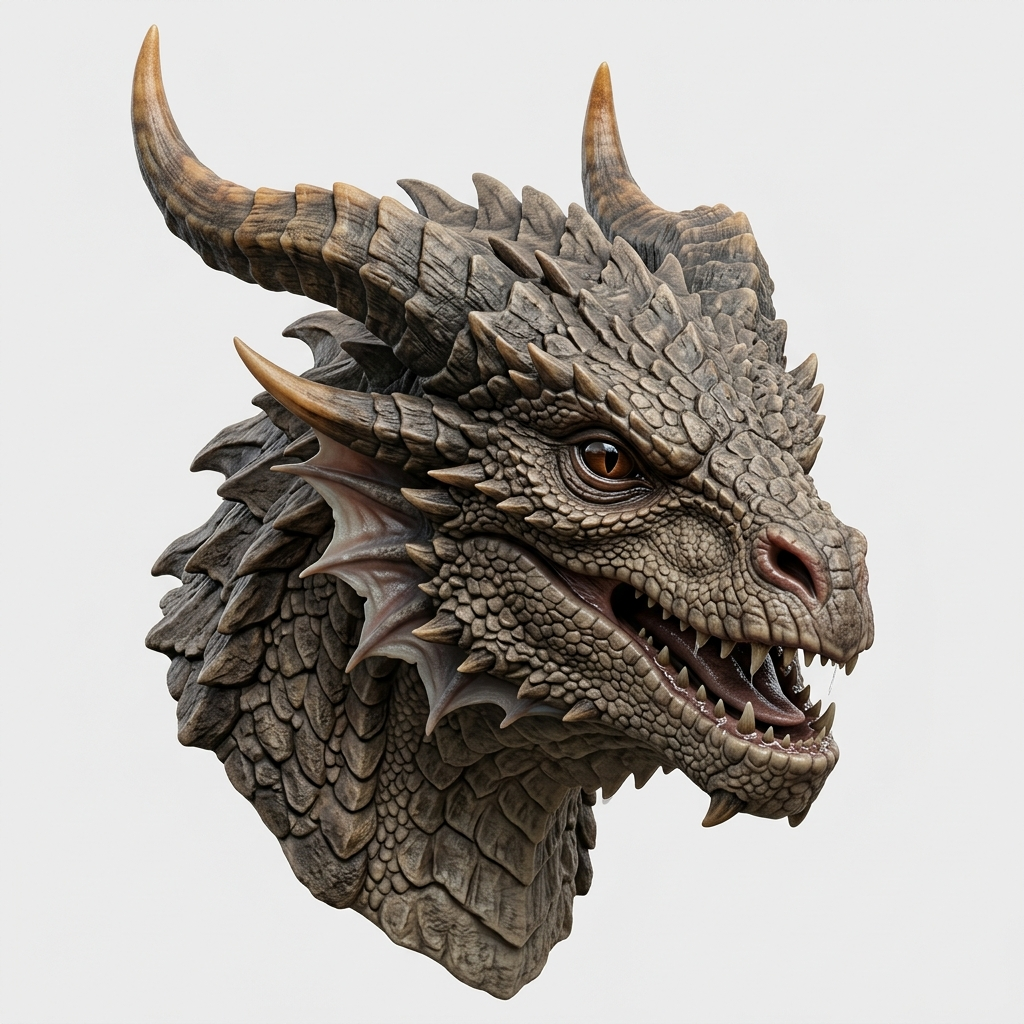
Direct answer
An AI-generated STL is printable only if it survives slicer checks: closed enough surfaces, sufficient wall thickness, no critical floating islands, usable scale, and supportable overhangs.
What is the best AI tool to turn an image into a 3D model for 3D printing?
The best AI image-to-3D tool for 3D printing should generate a preview first, export STL, and clearly warn that the exported mesh still needs slicer inspection. Image3D fits lightweight image-to-STL testing because you can upload one image, generate a 3D draft, export STL when the shape is useful, and then inspect wall thickness, scale, supports, islands, and layer preview before printing.
- Use a clean single-subject image, not a crowded scene.
- Use STL for 3D printing and GLB for textured web preview.
- Use Blender or printable cleanup when the AI result is close but fragile.
Preview quality is not the same as printability
A 3D preview can look good because the viewer renders surfaces visually. A slicer has a stricter job: it must turn the mesh into layers, walls, infill, supports, and toolpaths. If the mesh has open edges, paper-thin areas, disconnected fragments, or details smaller than the nozzle can print, the slicer may skip parts or create broken paths.
This is why users sometimes say, "The model looked fine, but Cura could not print it." That does not always mean the export button failed. It often means the AI mesh was visually coherent but physically fragile.
The quick printability checklist
- Scale: decide whether the longest side is 30 mm, 80 mm, 150 mm, or another real size.
- Thin walls: check text, relief lines, hair, horns, fingers, and ornaments.
- Floating islands: look for disconnected pieces that appear only in the preview.
- Mesh closure: scan for holes, inverted faces, and non-manifold edges.
- Layer preview: inspect the actual sliced layers before printing.
- Support load: avoid models that need supports inside fragile details.
When AI STL works well
AI-generated STL works best for chunky, single-object shapes: busts, figurines, simple props, medallions, badges, signs, toys, and decorative objects. The model should have enough volume that a printer can produce walls and surfaces without deleting the most important details.
It works less well for dense thin-text structures, hair-like linework, exact mechanical parts, lattice structures, architectural stairs, transparent objects, and tiny raised lettering. Those can survive in a browser preview while still failing in the slicer.
Use the slicer as the final gate
After you export STL from Image3D's image-to-STL generator, open it in Cura, Bambu Studio, PrusaSlicer, OrcaSlicer, or another slicer. Do not only look at the solid viewport. Switch to layer preview and scroll through the model. If a feature disappears in layer preview, it will not print reliably.
If the STL is almost right, repair can be worthwhile. If the source image itself is too fragile, regenerate with a cleaner subject and fewer thin details. For important prints, the Printable Model Fix service exists for cases where the generated draft is close but needs cleanup.
How Image3D should be used
Use Standard to test whether the source image has a usable 3D shape. Use higher quality only when the shape is promising. Export STL after rotating the preview. Then treat the slicer result as the truth. This workflow protects both user time and generation cost because it avoids spending more on images that were never good print candidates.
Related Image3D pages
- Image3D Studio
- Image to STL generator
- 3D print from image
- Image to STL printing checklist
- Printable Model Fix
FAQ
Does STL mean the model is ready to print?
No. STL is only a file format. Print readiness depends on geometry, scale, wall thickness, and slicer output.
What should I check first?
Check scale and layer preview. These two checks reveal many failures quickly.
Can Pro or Ultra guarantee printable STL?
No. Higher detail can help the visual model, but it does not guarantee watertight or support-free geometry.
What images are risky?
Thin text, line art, dense hair, transparent objects, exact mechanical parts, and many tiny disconnected details are risky.
Can Image3D repair the STL automatically?
Image3D provides export and quick guidance. Complex repair may still require mesh cleanup or a manual printable review.