One image → inspectable mesh → STL candidate
AI STL Generator
Turn a clear image of an object into a 3D mesh you can rotate in your browser. Check its shape, then export a worthwhile result as STL for a slicer inspection.
Free Standard preview. Model downloads require a paid pack or plan. Start with the preview before deciding to buy.
Choose the right kind of shape-making
AI three-dimensional object
Use this workflow for a creative starting mesh with depth and a reconstructed rear. Check the unseen sides rather than assuming they match the source.
Relief or extrusion
A flat logo, badge or height-based surface is a different job. Use a dedicated relief or vector-extrusion tool when controlled flat depth matters.
Mechanical CAD
Use CAD for measured holes, mating surfaces, tolerances and exact dimensions. An AI reconstruction does not supply those constraints.
From input to a slicer decision
- Choose one subject. Keep the outline visible; remove unrelated objects and avoid cropped tips or unreadable tiny lettering.
- Generate in the existing Studio. Inspect a Standard preview first. A paid regeneration is a new attempt, not an automatic correction.
- Inspect front, side and rear. Check silhouette, openings, thin parts and whether the body stays connected as it turns.
- Decide whether to export. Keep a usable existing result, or improve the input if the shape is fundamentally wrong. Higher tiers can still fail.
- Check the exact STL in a slicer. Set scale and orientation; inspect wall thickness, islands, supports and layer preview before a print attempt.
For the broader file workflow, see image-to-STL methods and slicer checks. The existing STL generation entry uses the same product workflow.
Published Image3D demonstration
Look beyond the dragon's source-facing view
Compare the horns, jaw opening and neck outline with the original image. Rotate the actual saved GLB to see what happens at the side and rear.
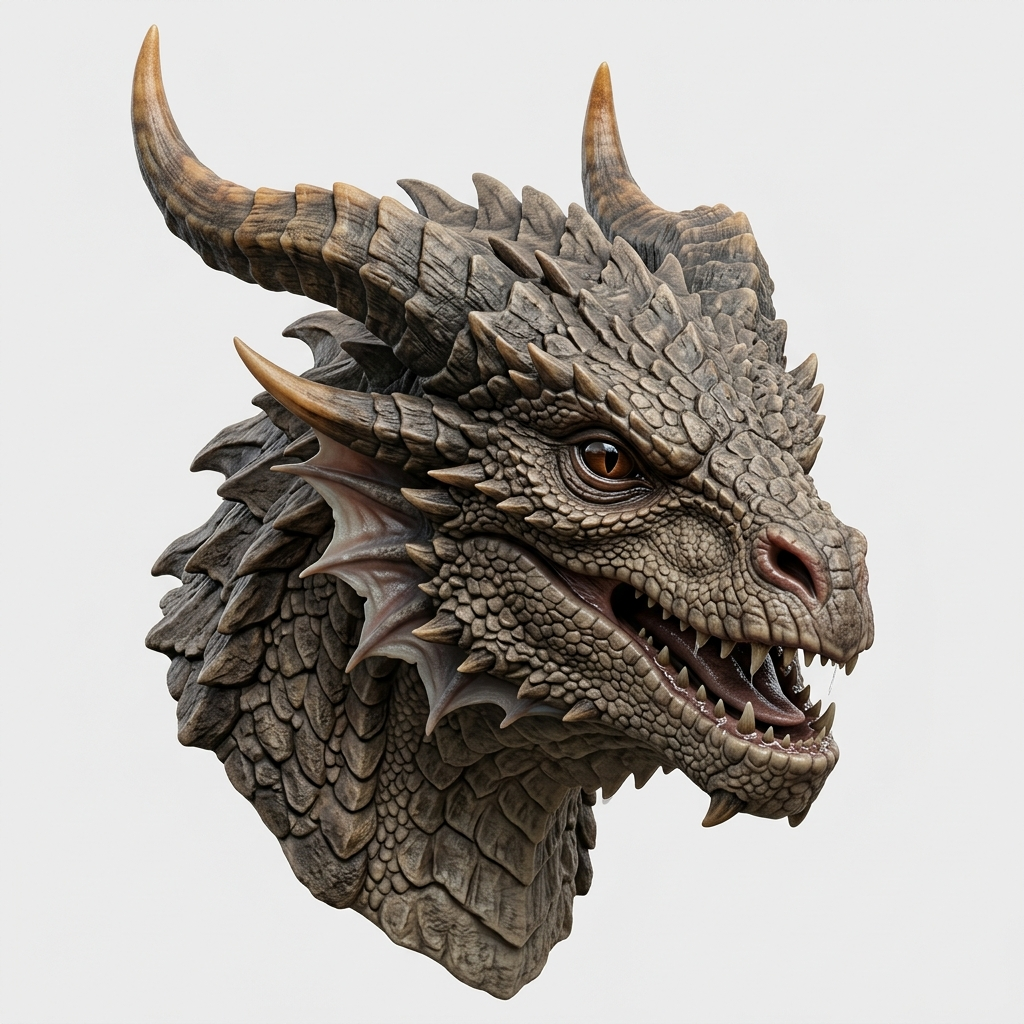
Loads only when requested. Drag to rotate; use arrow keys with the viewer focused.
Read the published source-to-GLB case. This demonstration is not a customer testimonial; no physical print or new slicer test is claimed.
Pay for the step you actually need
Keep an existing result
Maker is $9.99 one-time: 1,000 credits, Pro access and GLB, STL, OBJ and PLY exports. Ultra is not included. Buying export access does not regenerate the model or change its detail.
Try a new generation
Generation and regeneration spend credits. A download of an existing model is not a new generation charge. Inspect the current result before deciding whether you need another attempt.
Compare regenerating, changing the input or exporting, then check current packs and subscription terms.
Questions before you generate or export
Is the AI STL generator free?
You can start with a free Standard preview. Downloading your generated model requires a paid pack or plan. Maker is $9.99 one-time with 1,000 credits, Pro access and GLB, STL, OBJ and PLY exports; it does not include Ultra.
Does exporting an STL use generation credits?
Generation and regeneration use credits. Export access is a separate account entitlement: downloading an existing model is not another generation charge. Buying access does not regenerate or improve that model.
Can I use a logo or make a dimensionally exact part?
This workflow reconstructs a three-dimensional object. For a flat logo, use a dedicated relief or extrusion workflow; for measured mechanical parts, use CAD. Those are different tasks, not alternative modes offered by this page.
Will the exported model print successfully?
A browser preview cannot establish printability. Inspect scale, wall thickness, disconnected parts, supports and sliced layers in your slicer before printing.
Start with a shape you can judge
Preview one clear subject, inspect it from more than one angle, and export only when the next check is worth doing.
Open Studio