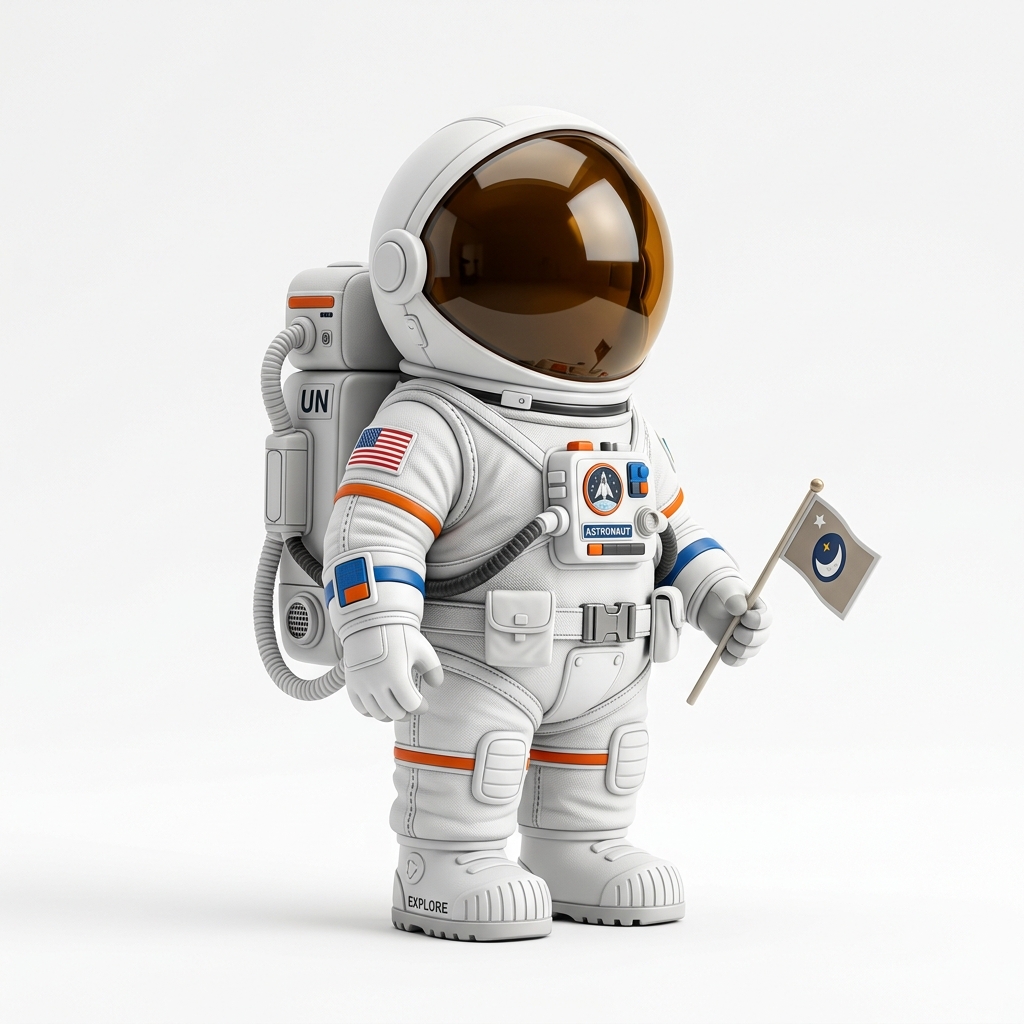
Figurine idea
A clear character or object photo can become a first-pass figurine candidate.
Photo to printable 3D model workflow
Use this workflow for product photos, toys, props, figurine ideas, simple statues, collectibles, pets, and other subjects you want to test as STL candidates.
Direct answer
Image3D can turn a clear photo into a first-pass 3D model, then export the mesh as STL for slicer inspection. Photos work best when they show one subject with a clean background, enough lighting, and visible shape from the front or a three-quarter view.
Printability note: Photo-to-STL is a creative reconstruction workflow, not a photogrammetry scan. It estimates unseen geometry and can deform faces, hair, hands, text, and tiny details.
Workflow
Choose a photo where the main object is not hidden by hands, shadows, blur, reflections, or clutter. Portraits and full-body human photos can be high demand, but they are also harder for Standard quality and may need higher tiers or cleanup.
Use Standard for a cheap first check. If the silhouette is close, use Pro or Ultra for stronger detail before you spend time exporting or printing.
The output is a generated mesh that can be previewed first. Export STL after unlocking downloads, then inspect scale, overhangs, disconnected islands, thin parts, and support needs in your slicer.
Best fit
Choose a photo where the main object is not hidden by hands, shadows, blur, reflections, or clutter. Portraits and full-body human photos can be high demand, but they are also harder for Standard quality and may need higher tiers or cleanup.
Photo-to-STL is a creative reconstruction workflow, not a photogrammetry scan. It estimates unseen geometry and can deform faces, hair, hands, text, and tiny details.
| Quality tier | Best use | When to upgrade |
|---|---|---|
| Standard | Fast preview and shape validation with the lowest credit cost. | Upgrade when the silhouette is close but details are weak. |
| Pro | Better detail for prototype exports and paid download decisions. | Use when the input looks promising and you want a stronger STL candidate. |
| Ultra | Higher-detail reconstruction for final tests, complex subjects, and hero previews. | Use when print quality or close-up detail matters more than speed. |
| Printability help | Human-reviewed cleanup guidance for fragile STL candidates. | Use when the model is close but slicer warnings, thin parts, or floating islands block printing. |
Examples
These examples show the kind of source material that usually gives Image3D enough visual structure to produce an inspectable first mesh. They are not promises of guaranteed watertight STL output.
A clear character or object photo can become a first-pass figurine candidate.
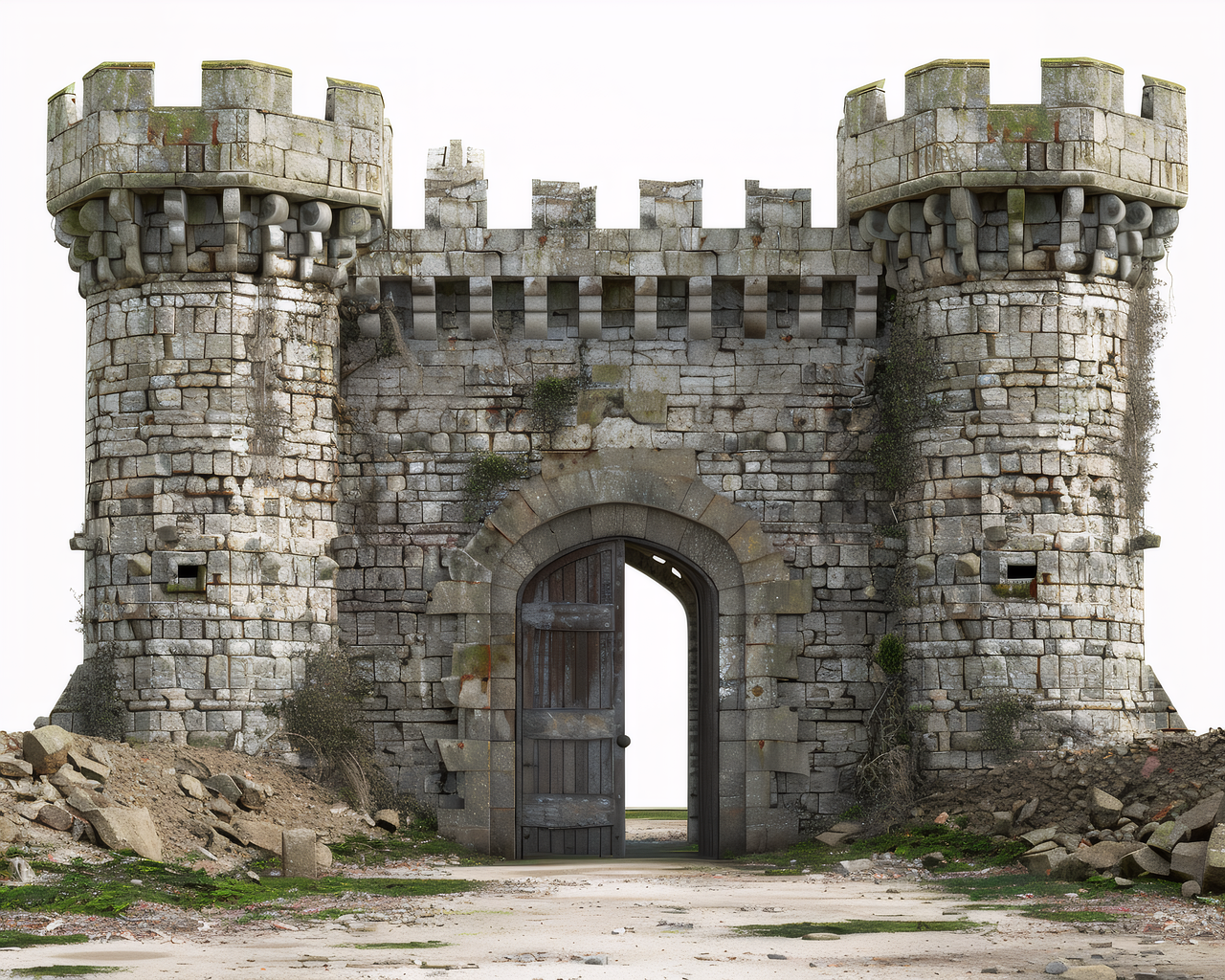
Product photos are useful when the subject shape is clear and isolated.
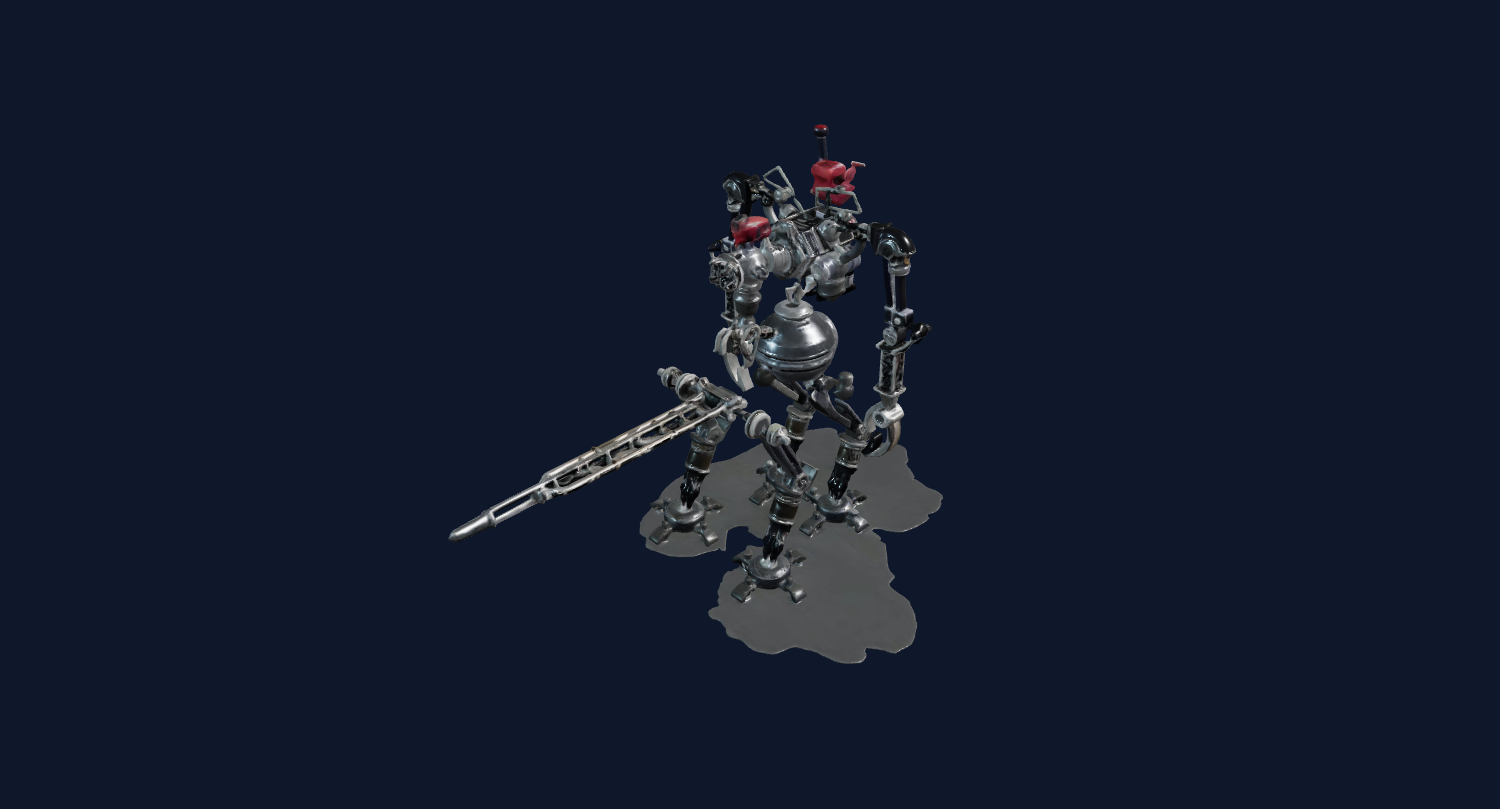
Simple toy-like objects usually produce more inspectable STL candidates than busy scenes.
The output is a generated mesh that can be previewed first. Export STL after unlocking downloads, then inspect scale, overhangs, disconnected islands, thin parts, and support needs in your slicer.
Photo-to-STL is a creative reconstruction workflow, not a photogrammetry scan. It estimates unseen geometry and can deform faces, hair, hands, text, and tiny details.
For Blender, Unity, Unreal, Shopify, or CAD-adjacent workflows, treat the generated mesh as a first-pass draft. You may still need cleanup, decimation, material editing, retopology, scale adjustment, or slicer repair.
FAQ
Yes. Upload a photo, generate a 3D preview with Image3D, then export STL after unlocking downloads. The output should be inspected before printing.
Portraits are popular but difficult. Standard quality can distort faces and hair. Use clear, centered images and consider Pro, Ultra, or cleanup help for figurine-style results.
No. Image3D reconstructs a 3D model from a single image using AI. It is useful for creative drafts, not exact measured scans.
A front or three-quarter view with good lighting, one subject, and a clean background usually works better than side-only photos or crowded scenes.
Check scale, wall thickness, floating parts, supports, orientation, and slicer layer preview before printing.
Generate a Standard preview first. Unlock downloads or higher-quality models only when the result is worth keeping.