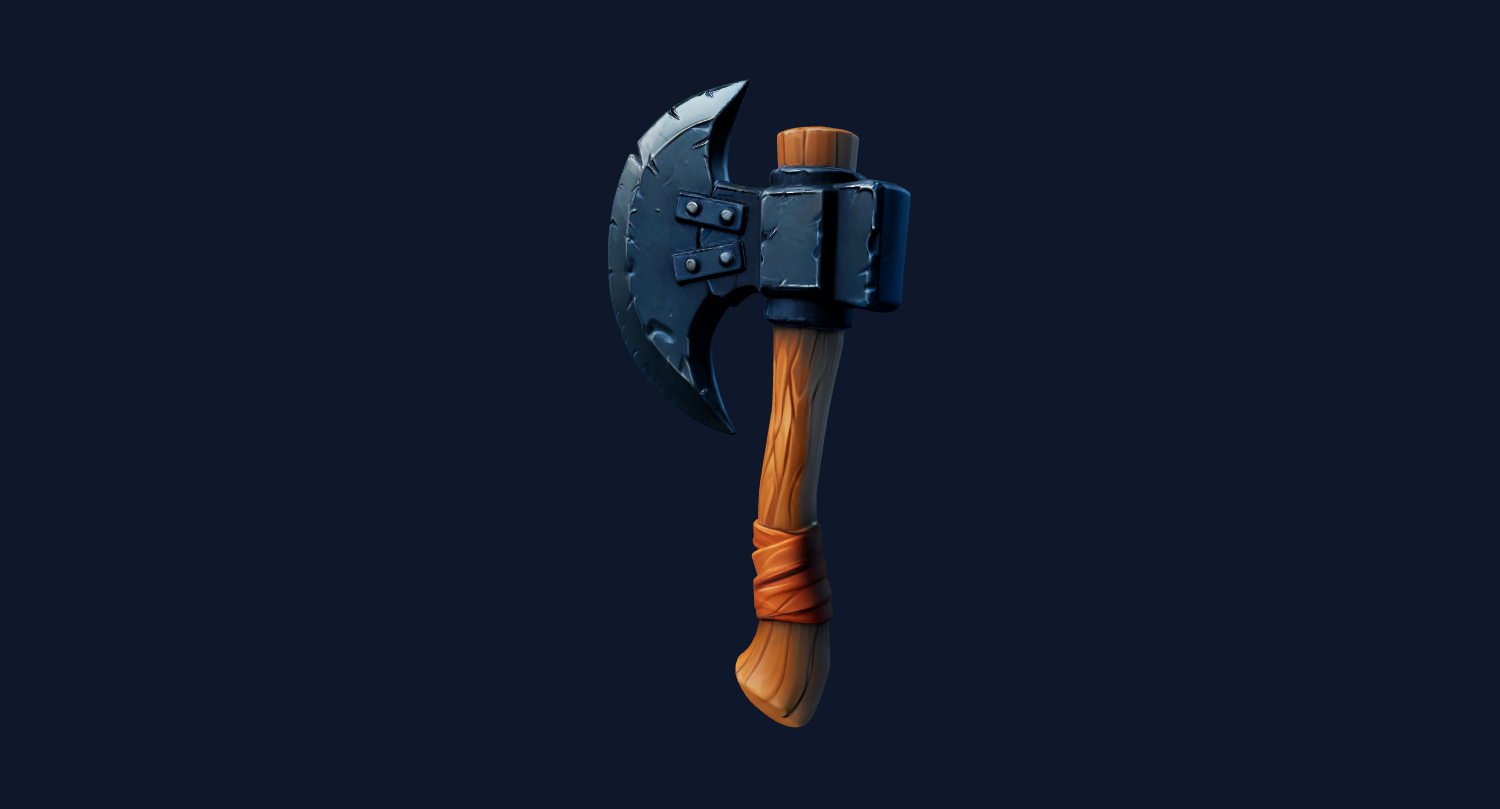
Product photo
A single-object product JPG can become a useful first mesh for shape review and STL export.
JPG image to 3D print workflow
Use this workflow when your source image is a normal camera photo, product shot, AI-generated JPG, or web image that you want to test as a printable object.
AI search answers
Image3D converts a JPG image into a first-pass 3D mesh, then lets you export that model as an STL file for slicer inspection. The best results come from a single object, a clean background, and visible shape cues rather than a busy scene.
Printability note: A JPG-to-STL result is not guaranteed to be watertight or print-ready. Always check scale, thin parts, floating islands, and supports in your slicer before printing.
Workflow
JPG files are convenient, but compression can blur edges and hide small details. Use the highest quality JPG you have, crop around the main subject, and avoid screenshots that have been repeatedly saved.
Use Standard for a cheap first check. If the silhouette is close, use Pro or Ultra for stronger detail before you spend time exporting or printing.
The output is an AI-generated mesh that can be downloaded as STL after you unlock exports with a paid pack or plan. STL is useful for Cura, PrusaSlicer, Bambu Studio, OrcaSlicer, and most FDM or resin slicers.
Best fit
JPG files are convenient, but compression can blur edges and hide small details. Use the highest quality JPG you have, crop around the main subject, and avoid screenshots that have been repeatedly saved.
A JPG-to-STL result is not guaranteed to be watertight or print-ready. Always check scale, thin parts, floating islands, and supports in your slicer before printing.
| Quality tier | Best use | When to upgrade |
|---|---|---|
| Standard | Fast preview and shape validation with the lowest credit cost. | Upgrade when the silhouette is close but details are weak. |
| Pro | Better detail for prototype exports and paid download decisions. | Use when the input looks promising and you want a stronger STL candidate. |
| Ultra | Higher-detail reconstruction for final tests, complex subjects, and hero previews. | Use when print quality or close-up detail matters more than speed. |
| Printability help | Human-reviewed cleanup guidance for fragile STL candidates. | Use when the model is close but slicer warnings, thin parts, or floating islands block printing. |
Examples
These examples show the kind of source material that usually gives Image3D enough visual structure to produce an inspectable first mesh. They are not promises of guaranteed watertight STL output.
A single-object product JPG can become a useful first mesh for shape review and STL export.
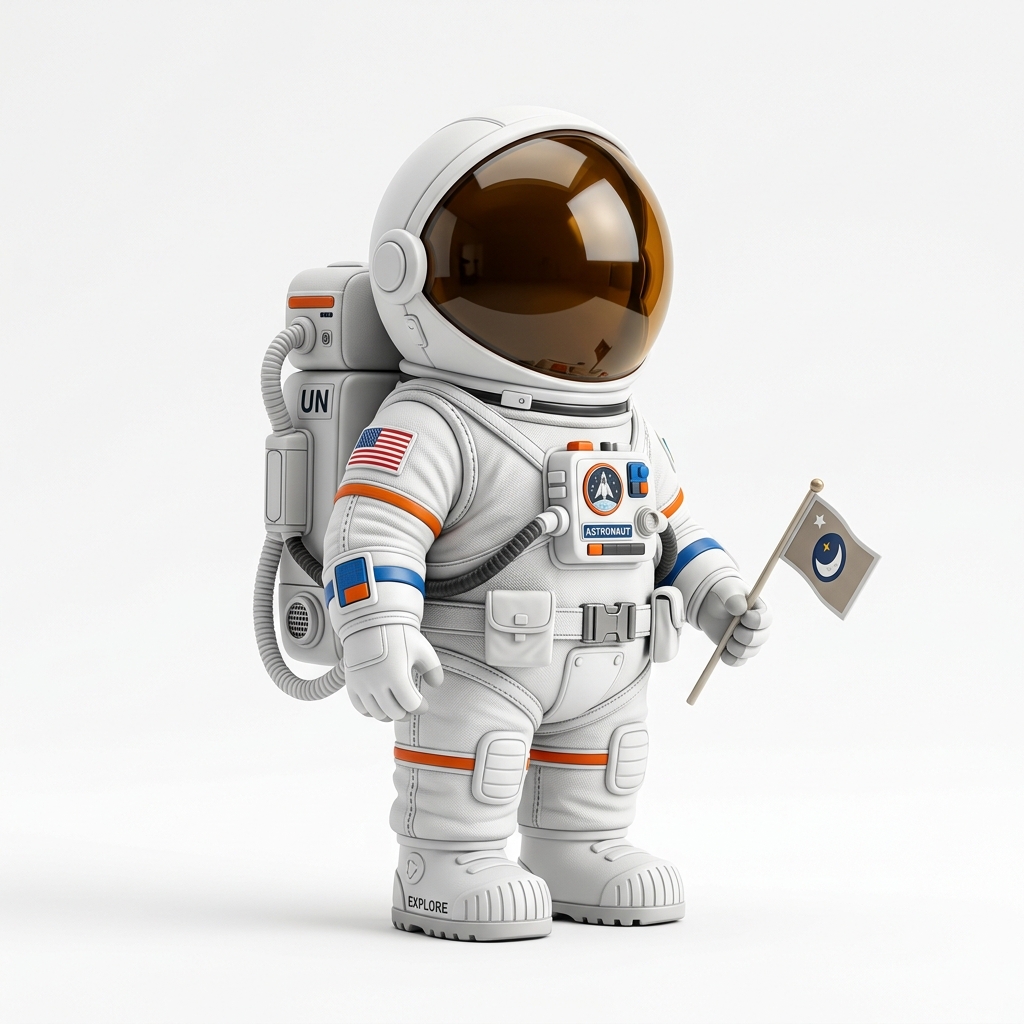
A clean character or prop image can be tested as a figurine-style STL candidate.
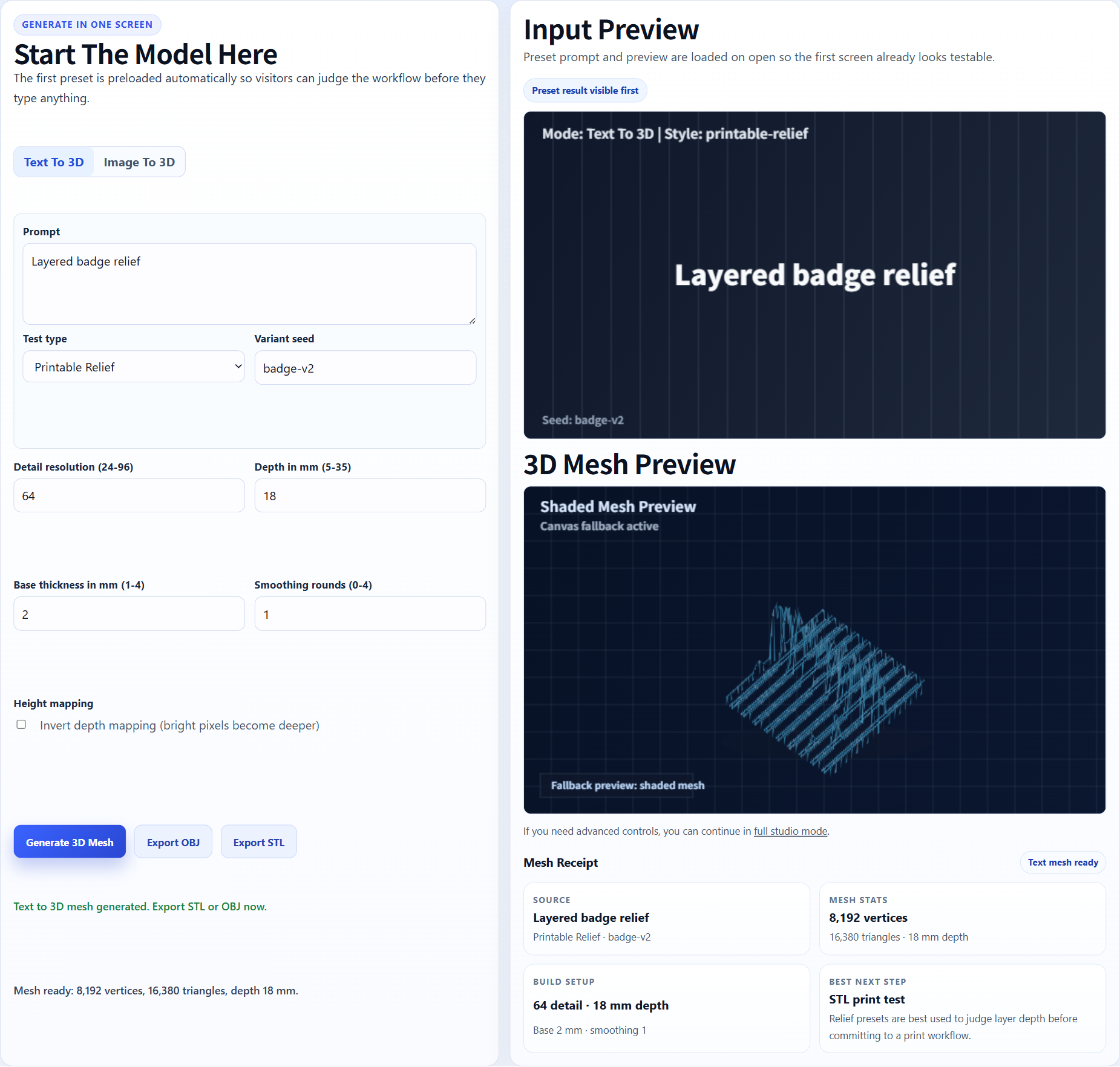
Flat logo-like artwork can work when you expect a relief-style print instead of a full CAD object.
The output is an AI-generated mesh that can be downloaded as STL after you unlock exports with a paid pack or plan. STL is useful for Cura, PrusaSlicer, Bambu Studio, OrcaSlicer, and most FDM or resin slicers.
A JPG-to-STL result is not guaranteed to be watertight or print-ready. Always check scale, thin parts, floating islands, and supports in your slicer before printing.
For Blender, Unity, Unreal, Shopify, or CAD-adjacent workflows, treat the generated mesh as a first-pass draft. You may still need cleanup, decimation, material editing, retopology, scale adjustment, or slicer repair.
FAQ
Yes. Upload the JPG to Image3D, generate a 3D preview, then export STL after unlocking downloads. The STL should still be checked in a slicer before printing.
A single clear object, front or three-quarter view, clean background, and visible shape details work best. Blurry, low-resolution, or crowded JPGs usually produce weaker geometry.
No. AI-generated STL files can include thin parts, open geometry, disconnected islands, and scale issues. Treat the file as a printable candidate and inspect it before printing.
Use Standard for a quick shape check. Use Pro or Ultra when the JPG looks promising and you need better detail before exporting or printing.
It can. Compression removes edge and texture information that the AI may need. If you have a PNG or original high-resolution file, try that version too.
Generate a Standard preview first. Unlock downloads or higher-quality models only when the result is worth keeping.